This guide covers a managed setup on Vercel using the Neon and Upstash integrations.
To use other databases, see Environment Variables for more details.
1. Fast path with the CLI If you have the Inbox Zero CLI installed, the fastest path is:
The command will:
link apps/web to a Vercel project
provision Neon and Upstash Redis through Vercel Marketplace integrations
generate the required app secrets
seed the Vercel environment variables
optionally trigger vercel deploy --prod
If you already provisioned one of the integrations, rerun with --skip-neon or --skip-upstash.
2. Deploy on Vercel manually Click here to deploy on Vercel:
The deploy button only pre-fills the secrets listed below. Your first Vercel build
will usually fail until a Postgres database is attached and DATABASE_URL exists.
That is expected. Create a free Neon database from Vercel Storage, then redeploy.
Set the following environment variables:
For secret generation you can also use openssl rand -base64 32 on macOS or Linux.
To find your LLM API key, see LLM Setup .
For the full list of environment variables, see Environment Variables . We will set more environment variables later in the guide. 3. Neon PostgreSQL Database in Vercel Neon is a PostgreSQL database provider that offers a free tier which is enough for personal use cases.
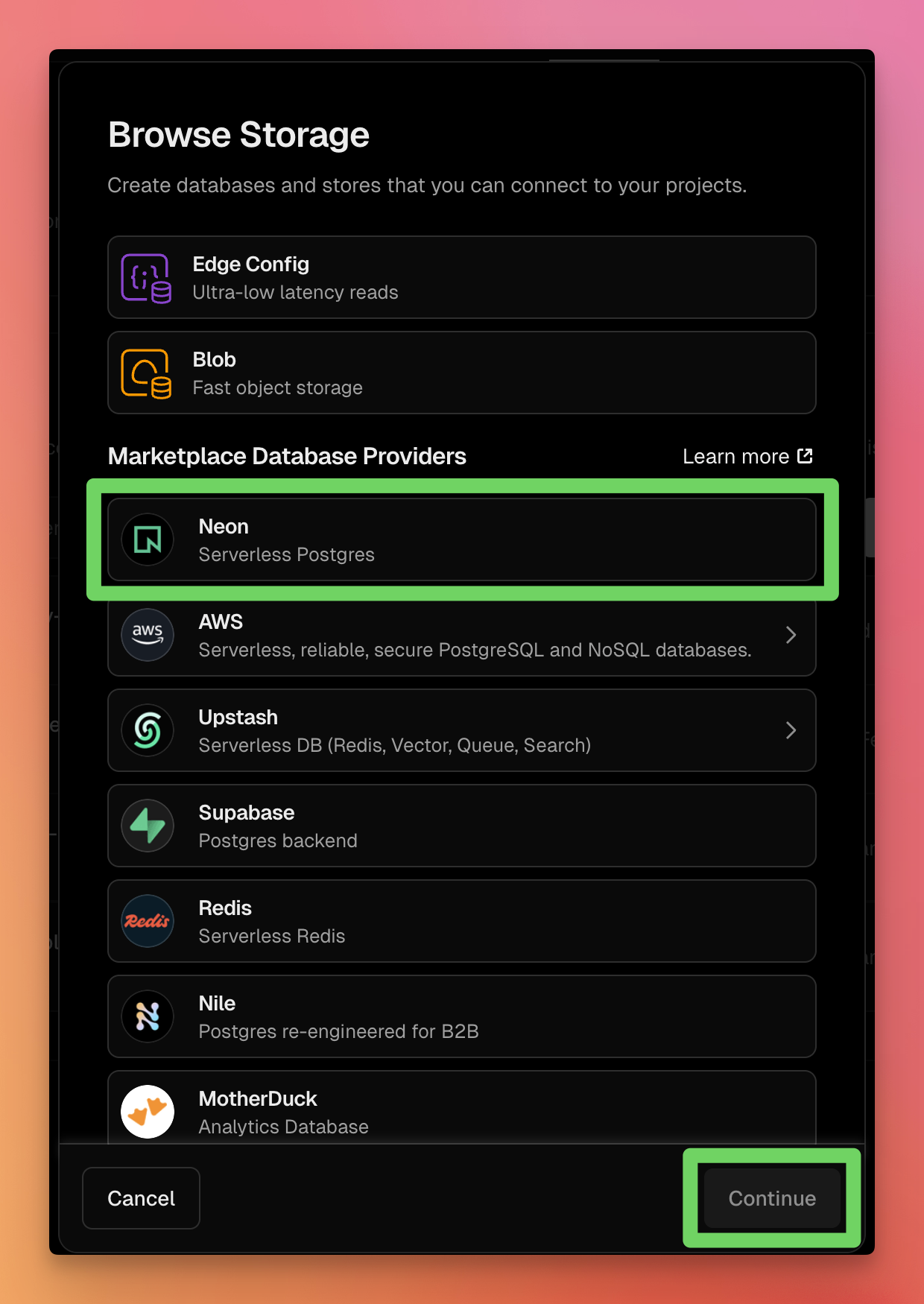
In your Vercel project, open Storage.
Click Create Database.
Click Neon.
Vercel injects Neon connection variables automatically.
After Neon is connected, Vercel adds DATABASE_URL. Redeploy after that first-time setup.
4. Upstash Redis Database in Vercel Upstash is a Redis database provider that offers a free tier which is enough for personal use cases.
In your Vercel project, open Storage.
Click Create Database.
Click Upstash.
Vercel injects Upstash connection variables automatically.
5. Set other environment variables Once Vercel assigns your project domain (for example https://your-project.vercel.app), set:
Go to Project Settings -> Environment Variables and add:
Set Google or Microsoft environment variables based on the guides:
6. Redeploy and verify
Trigger a new Vercel deploy.
Confirm build completes.
Visit your project domain and verify it works.
Sign in and connect an email account.