

-
Configure consent screen:
Go to Credentials. If the banner shows up, click it and then click
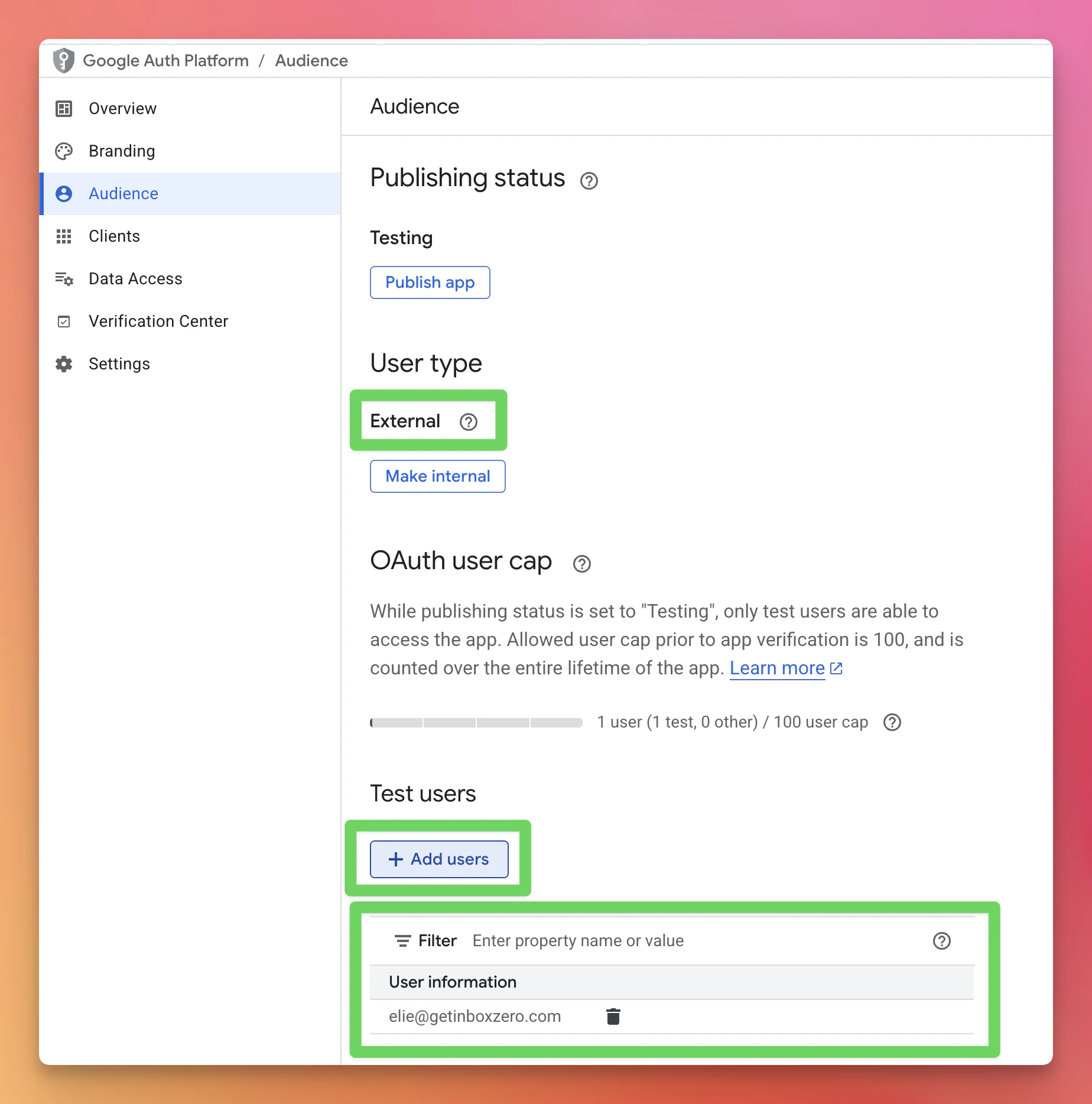
Get Started. Follow the prompts to name your app and set your contact email.- Internal — Google Workspace only. All members of your organization can sign in without additional setup. Personal Gmail accounts cannot use Internal apps.
- External — any Google account, including personal Gmail. You’ll need to add yourself as a test user (see step 5 below).
-
Create OAuth credentials:
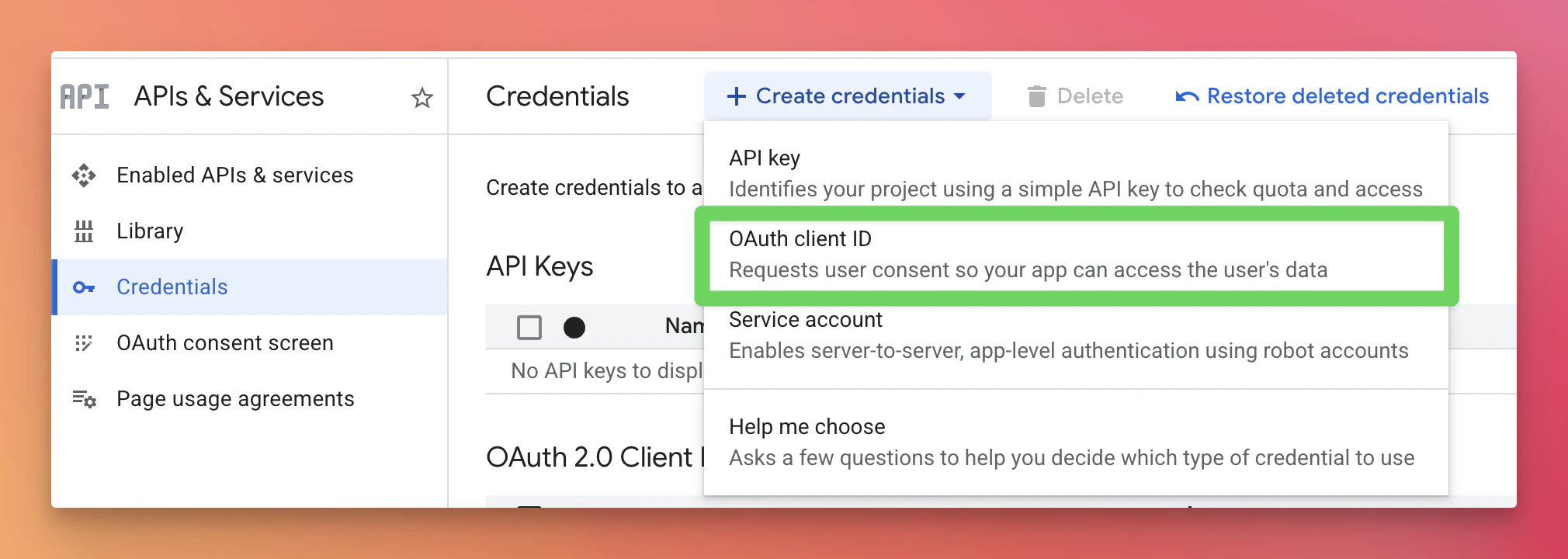
- Click
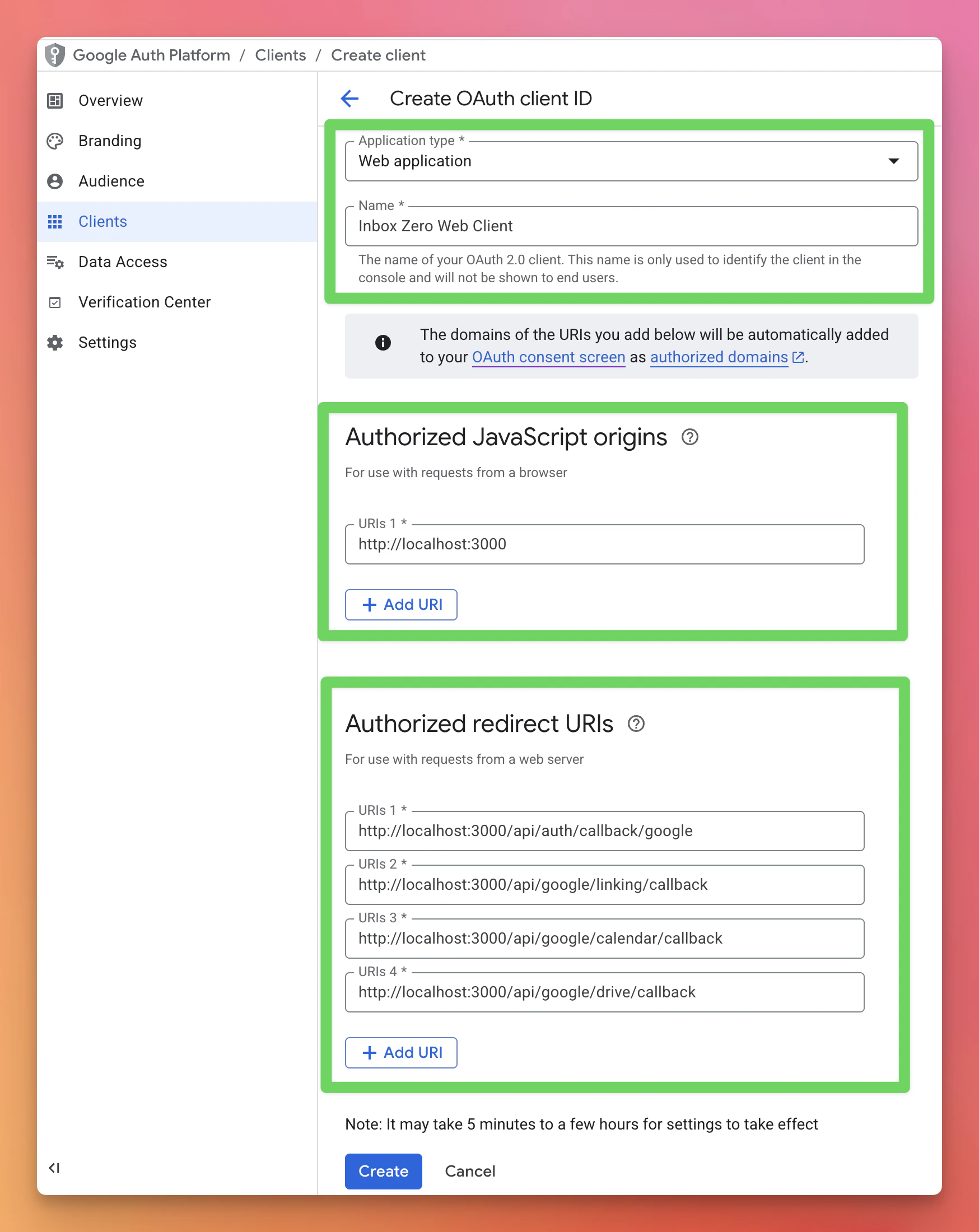
+Create Credentials>OAuth Client ID. - Application Type:
Web application. - Authorized JavaScript origins:
http://localhost:3000(replace with your domain in production) - Authorized redirect URIs (replace
localhost:3000with your domain in production):http://localhost:3000/api/auth/callback/googlehttp://localhost:3000/api/google/linking/callbackhttp://localhost:3000/api/google/calendar/callback(optional, for calendar)http://localhost:3000/api/google/drive/callback(optional, for Drive)
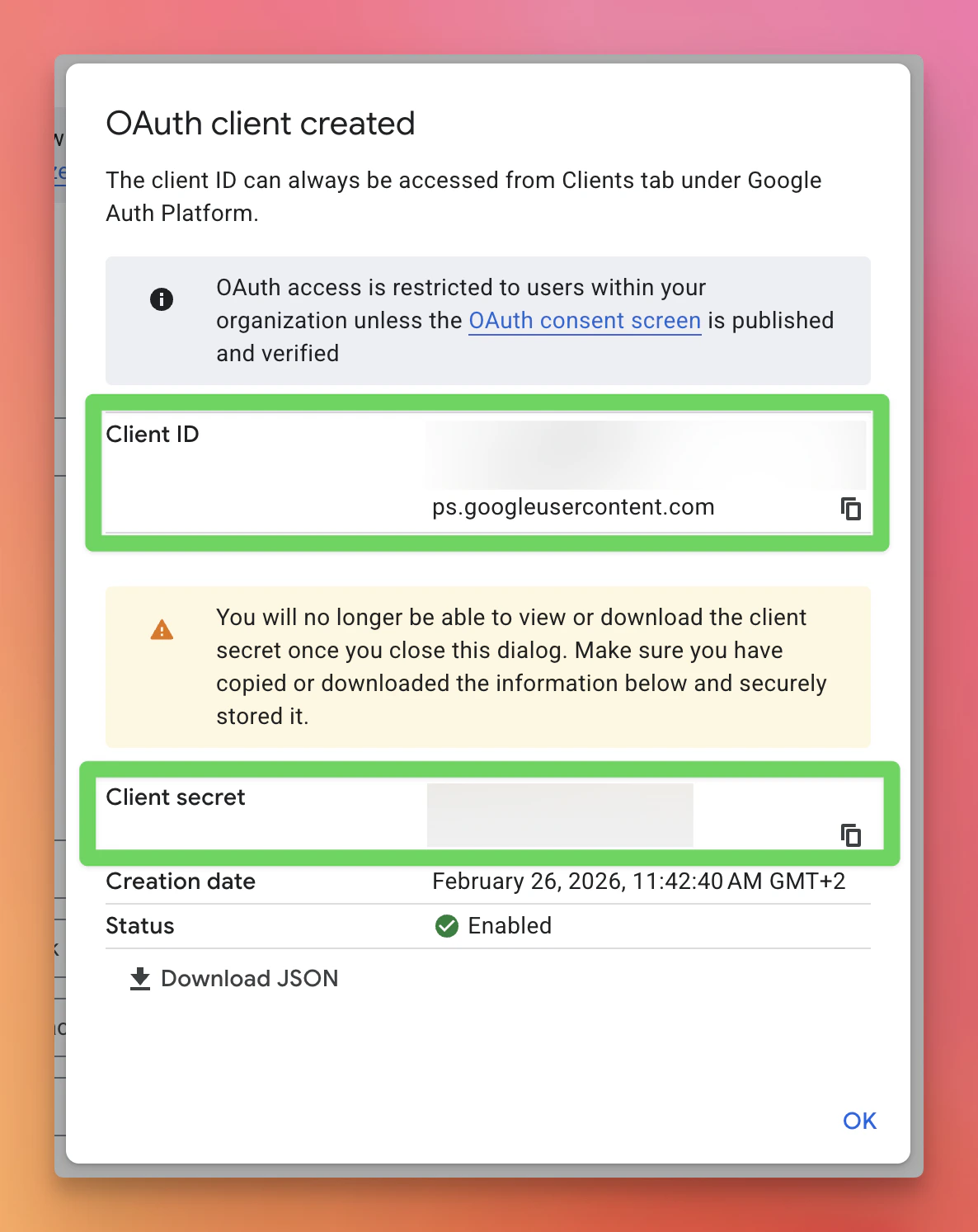
- Click
Createand copy the Client ID and secret.
- Click
-
Update
.envfile:- Set
GOOGLE_CLIENT_IDandGOOGLE_CLIENT_SECRET.
- Set
-
Update scopes:
-
Go to
Data Accessin the sidebar. -
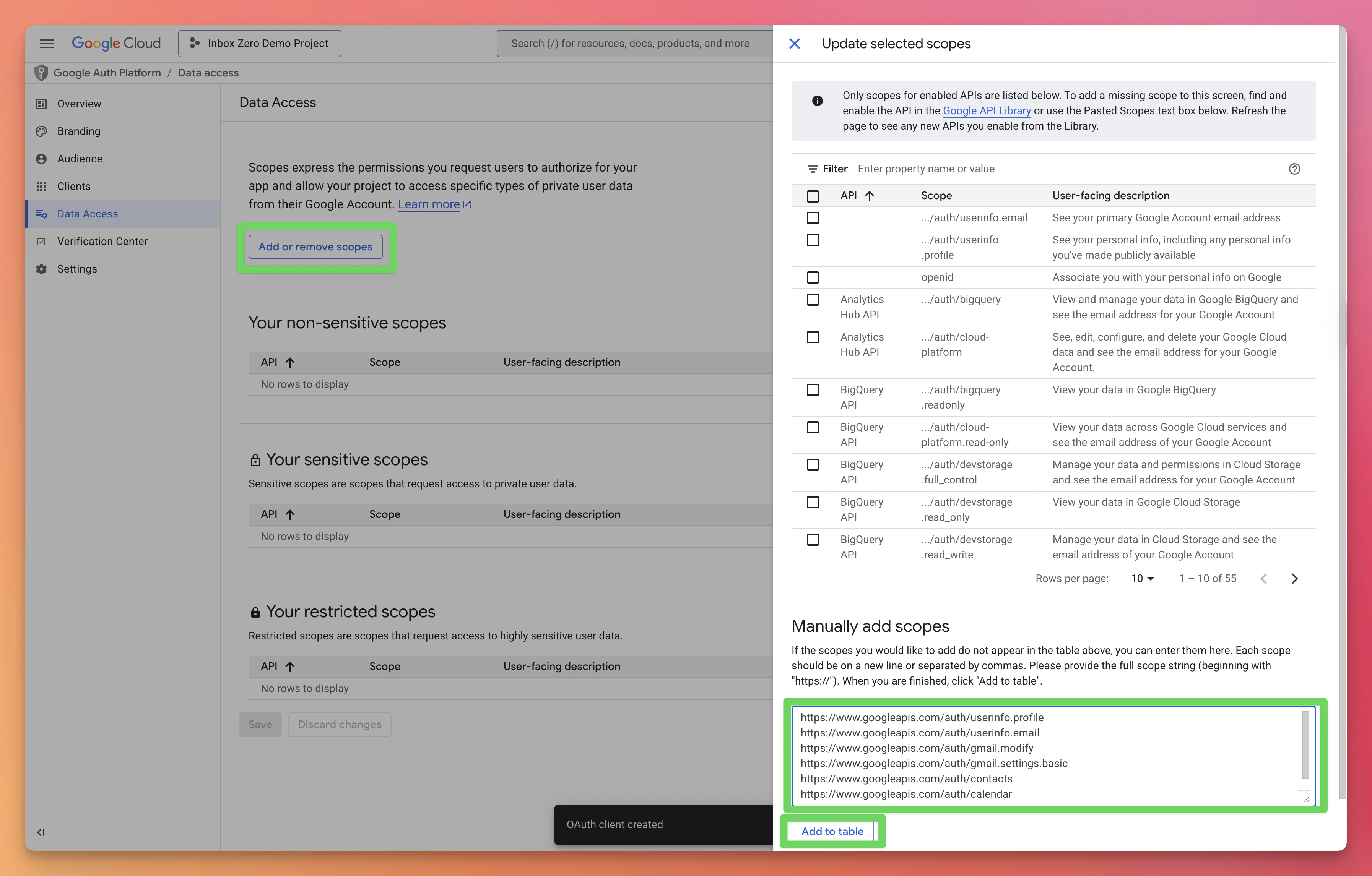
Click
Add or remove scopes. -
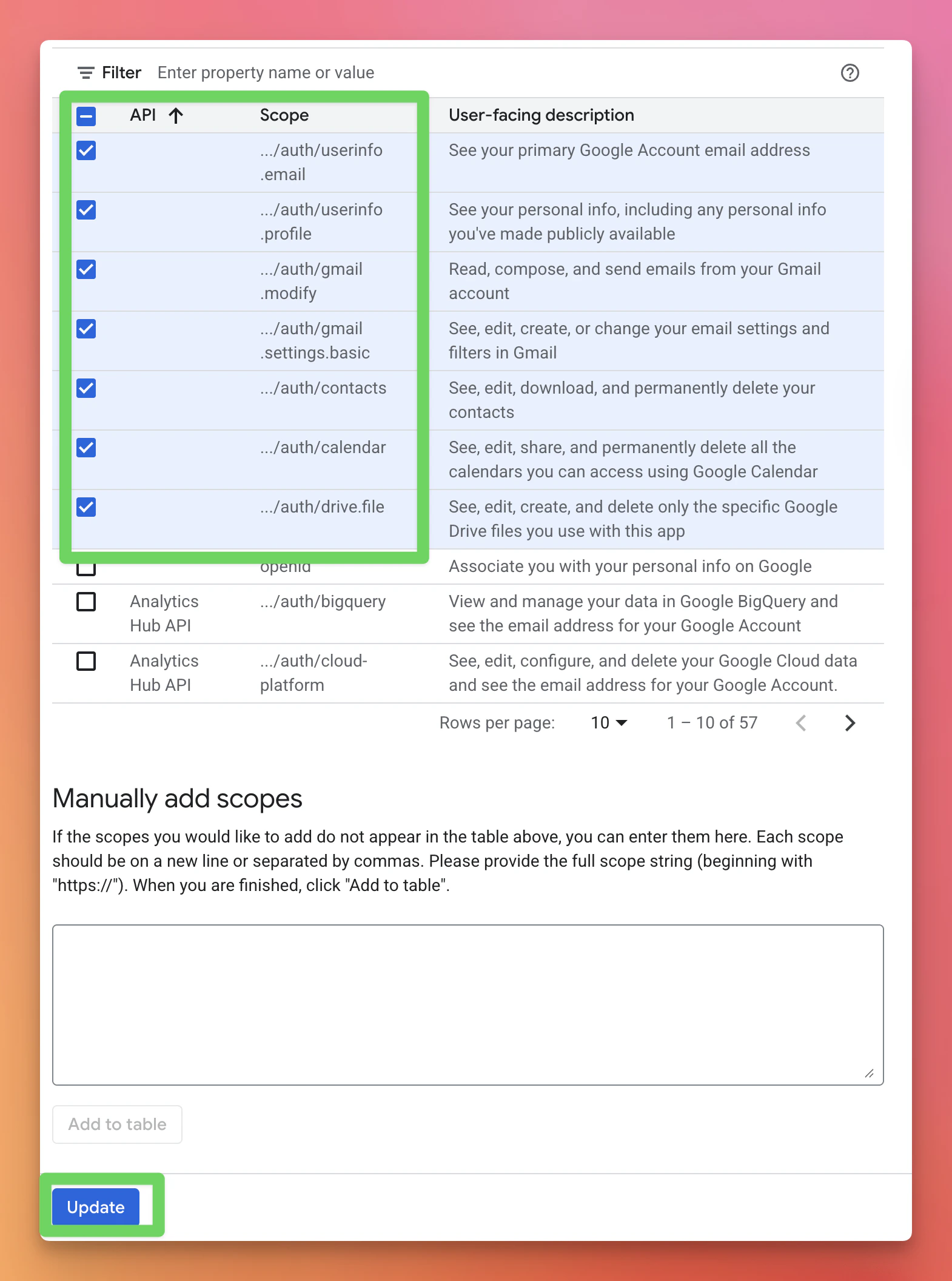
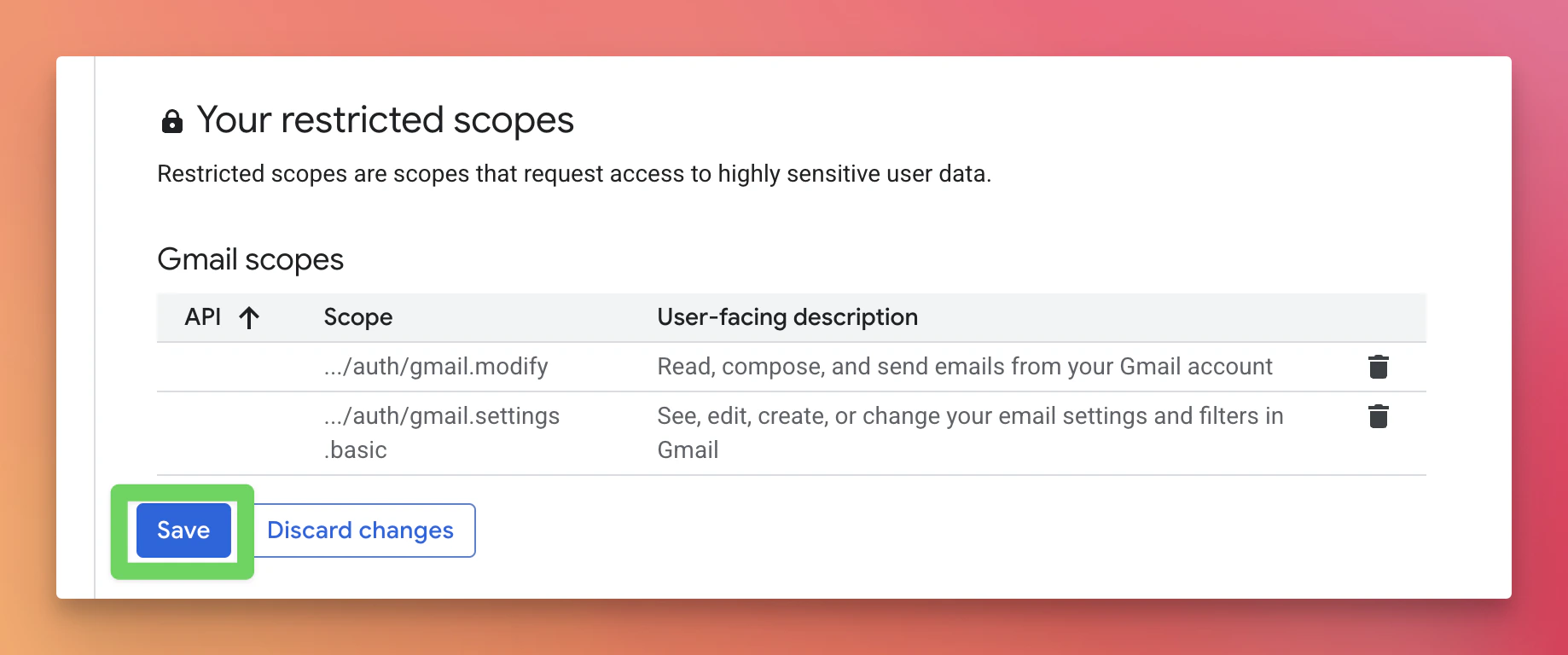
Manually add the core sign-in and Gmail scopes:
-
Add only the optional feature scopes your deployment will use:
Contacts — only when
NEXT_PUBLIC_CONTACTS_ENABLED=true:Existing accounts can continue using core email features without this scope. When they open the composer, Inbox Zero offers an optional reconnect action if they want contact suggestions. Calendar:Google Drive, Standard access — lets Inbox Zero create folders and access files it created or the user explicitly opened with it:If users will select Full access when connecting Drive so they can choose existing folders, also declare: -
Click
Update, thenSave.
-
Go to
-
Add yourself as a test user (External only):
- Go to Audience.
- In
Test users, click+Add usersand enter your email.
-
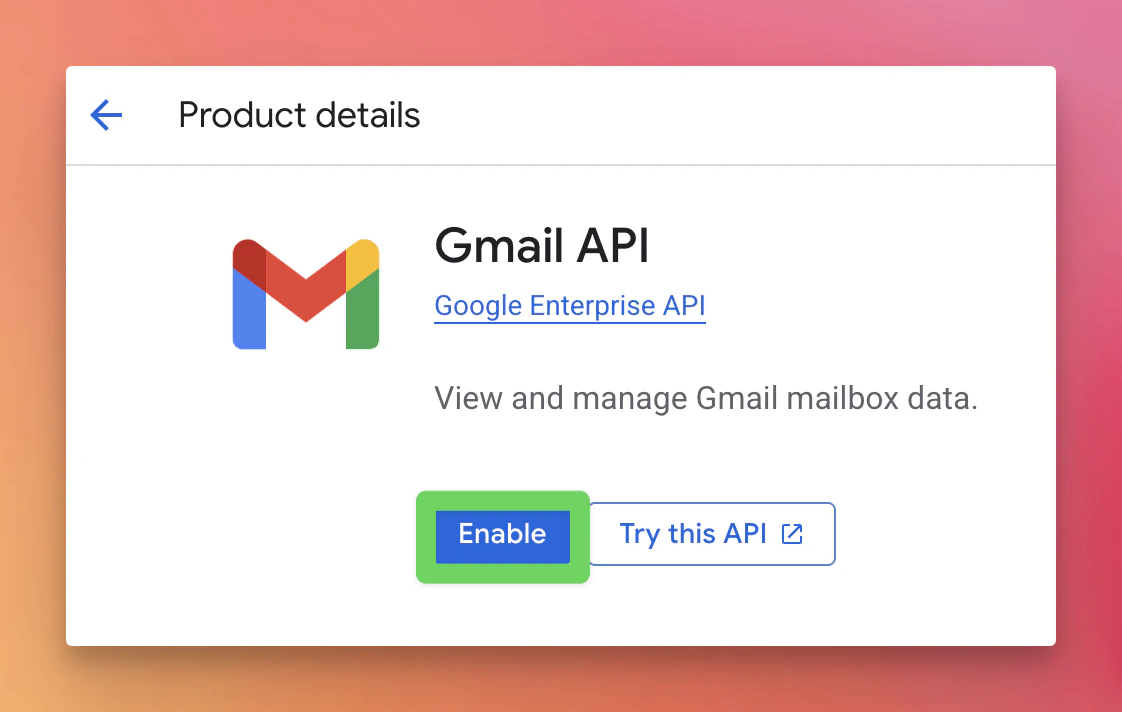
Enable required APIs:
- Gmail API (required)
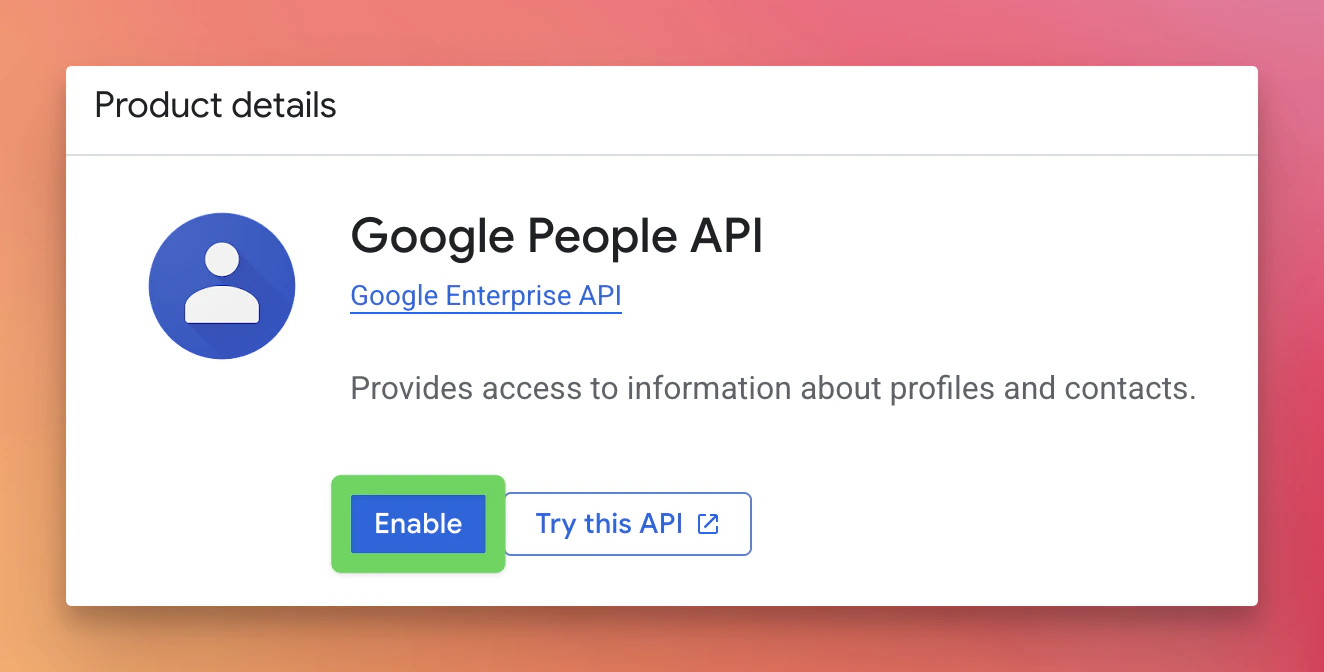
- Google People API (optional, for Contacts)
- Google Calendar API (optional)
- Google Drive API (optional)
Setup Guides
Google OAuth
Configure Google OAuth credentials, scopes, and required APIs
Go to Google Cloud Console and create a new project if necessary.