> ## Documentation Index
> Fetch the complete documentation index at: https://docs.getinboxzero.com/llms.txt
> Use this file to discover all available pages before exploring further.
# Vercel Deployment
> Deploy Inbox Zero on Vercel using Neon and Upstash integrations
This guide covers a managed setup on Vercel using the Neon and Upstash integrations.
To use other databases, see [Environment Variables](/hosting/environment-variables) for more details.
## 1. Fast path with the CLI
If you have the Inbox Zero CLI installed, the fastest path is:
```bash theme={null}
inbox-zero setup-vercel
```
The command will:
* link `apps/web` to a Vercel project
* provision Neon and Upstash Redis through Vercel Marketplace integrations
* generate the required app secrets
* seed the Vercel environment variables
* optionally trigger `vercel deploy --prod`
If you already provisioned one of the integrations, rerun with `--skip-neon` or `--skip-upstash`.
## 2. Deploy on Vercel manually
Click here to deploy on Vercel:
[](https://vercel.com/new/clone?repository-url=https%3A%2F%2Fgithub.com%2Felie222%2Finbox-zero\&root-directory=apps%2Fweb\&env=AUTH_SECRET%2CINTERNAL_API_KEY%2CEMAIL_ENCRYPT_SECRET%2CEMAIL_ENCRYPT_SALT%2CMICROSOFT_WEBHOOK_CLIENT_STATE%2CDEFAULT_LLMS%2CLLM_API_KEY)
The deploy button only pre-fills the secrets listed below. Your first Vercel build
will usually fail until a Postgres database is attached and `DATABASE_URL` exists.
That is expected. Create a free Neon database from Vercel Storage, then redeploy.
Set the following environment variables:
```bash theme={null}
AUTH_SECRET= # https://generate-secret.vercel.app/32
INTERNAL_API_KEY= # https://generate-secret.vercel.app/32
EMAIL_ENCRYPT_SECRET= # https://generate-secret.vercel.app/32
EMAIL_ENCRYPT_SALT= # https://generate-secret.vercel.app/16
MICROSOFT_WEBHOOK_CLIENT_STATE= # https://generate-secret.vercel.app/32
# LLM:
DEFAULT_LLMS= # provider:model, e.g. openai:gpt-5.4-mini
LLM_API_KEY=
```
For secret generation you can also use `openssl rand -base64 32` on macOS or Linux.
To find your LLM API key, see [LLM Setup](/hosting/llm-setup).
For the full list of environment variables, see [Environment Variables](/hosting/environment-variables). We will set more environment variables later in the guide.
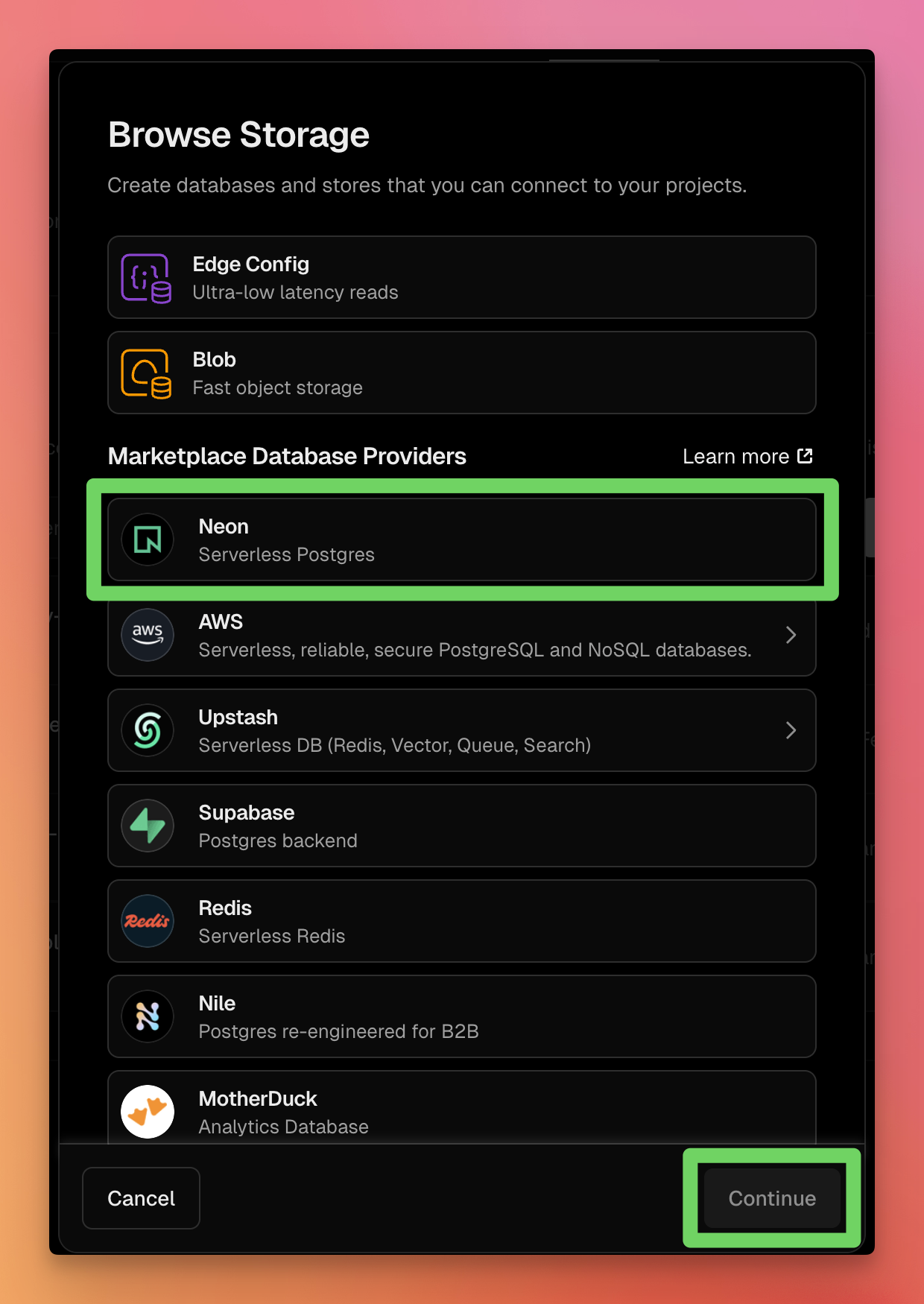
## 3. Neon PostgreSQL Database in Vercel
Neon is a PostgreSQL database provider that offers a free tier which is enough for personal use cases.
1. In your Vercel project, open `Storage`.
2. Click `Create Database`.
3. Click `Neon`.
Vercel injects Neon connection variables automatically.
After Neon is connected, Vercel adds `DATABASE_URL`. Redeploy after that first-time setup.
 ## 4. Upstash Redis Database in Vercel
Upstash is a Redis database provider that offers a free tier which is enough for personal use cases.
1. In your Vercel project, open `Storage`.
2. Click `Create Database`.
3. Click `Upstash`.
Vercel injects Upstash connection variables automatically.
## 5. Set other environment variables
Once Vercel assigns your project domain (for example `https://your-project.vercel.app`), set:
Go to Project `Settings` -> `Environment Variables` and add:
```bash theme={null}
NEXT_PUBLIC_BASE_URL=https://your-project.vercel.app
```
Set Google or Microsoft environment variables based on the guides:
* [Google OAuth](/hosting/google-oauth)
* [Microsoft OAuth](/hosting/microsoft-oauth)
* [Google PubSub](/hosting/google-pubsub)
## 6. Redeploy and verify
1. Trigger a new Vercel deploy.
2. Confirm build completes.
3. Visit your project domain and verify it works.
4. Sign in and connect an email account.
## 4. Upstash Redis Database in Vercel
Upstash is a Redis database provider that offers a free tier which is enough for personal use cases.
1. In your Vercel project, open `Storage`.
2. Click `Create Database`.
3. Click `Upstash`.
Vercel injects Upstash connection variables automatically.
## 5. Set other environment variables
Once Vercel assigns your project domain (for example `https://your-project.vercel.app`), set:
Go to Project `Settings` -> `Environment Variables` and add:
```bash theme={null}
NEXT_PUBLIC_BASE_URL=https://your-project.vercel.app
```
Set Google or Microsoft environment variables based on the guides:
* [Google OAuth](/hosting/google-oauth)
* [Microsoft OAuth](/hosting/microsoft-oauth)
* [Google PubSub](/hosting/google-pubsub)
## 6. Redeploy and verify
1. Trigger a new Vercel deploy.
2. Confirm build completes.
3. Visit your project domain and verify it works.
4. Sign in and connect an email account.