> ## Documentation Index
> Fetch the complete documentation index at: https://docs.getinboxzero.com/llms.txt
> Use this file to discover all available pages before exploring further.
# Google OAuth
> Configure Google OAuth credentials, scopes, and required APIs
**Quick Setup with CLI:** If you have the `gcloud` CLI installed, run `inbox-zero setup-google` to automate API enabling and Pub/Sub setup. It will guide you through the OAuth steps that require manual console access.
Go to [Google Cloud Console](https://console.cloud.google.com/) and create a new project if necessary.
1. **Configure consent screen:**
Go to [Credentials](https://console.cloud.google.com/apis/credentials). If the banner shows up, click it and then click `Get Started`. Follow the prompts to name your app and set your contact email.
* **Internal** — Google Workspace only. All members of your organization can sign in without additional setup. Personal Gmail accounts cannot use Internal apps.
* **External** — any Google account, including personal Gmail. You'll need to add yourself as a test user (see step 5 below).
If you chose **External**: since your app is unverified (normal for self-hosted), you must add yourself as a test user (see step 5 below) before you can sign in. You'll also see a "This app isn't verified" warning screen when signing in — click "Advanced" then "Go to \[app name]" to proceed.
2. **Create OAuth credentials:**
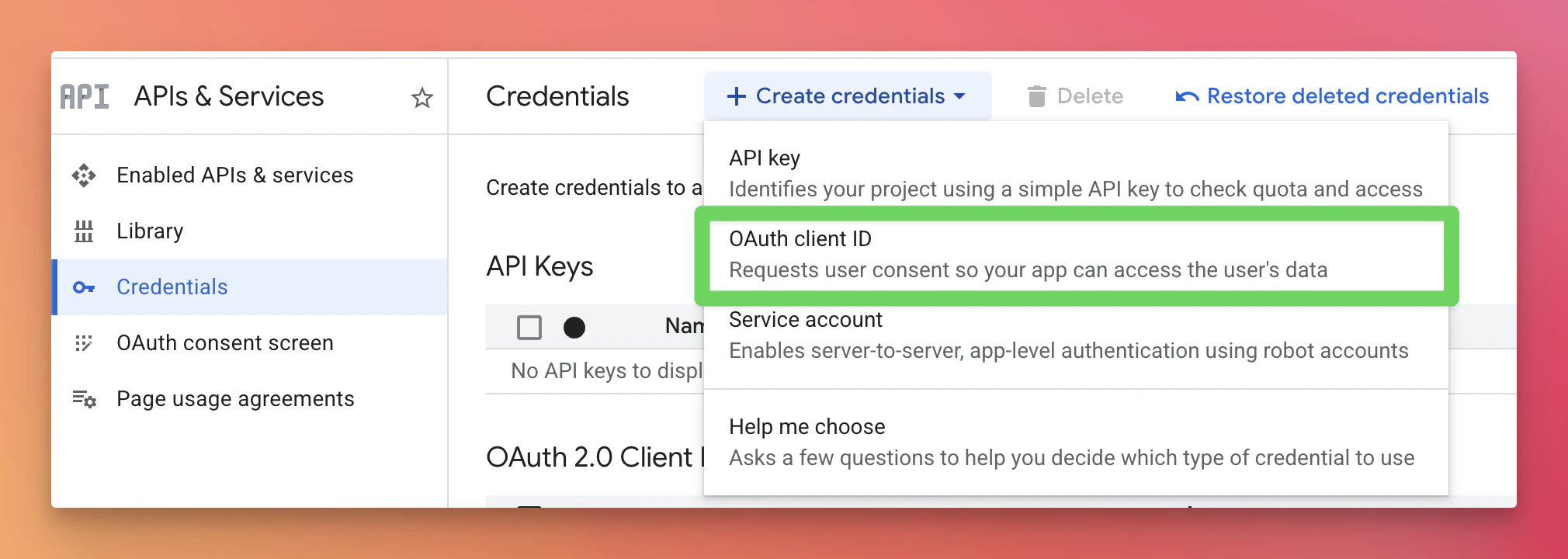
1. Click `+Create Credentials` > `OAuth Client ID`.
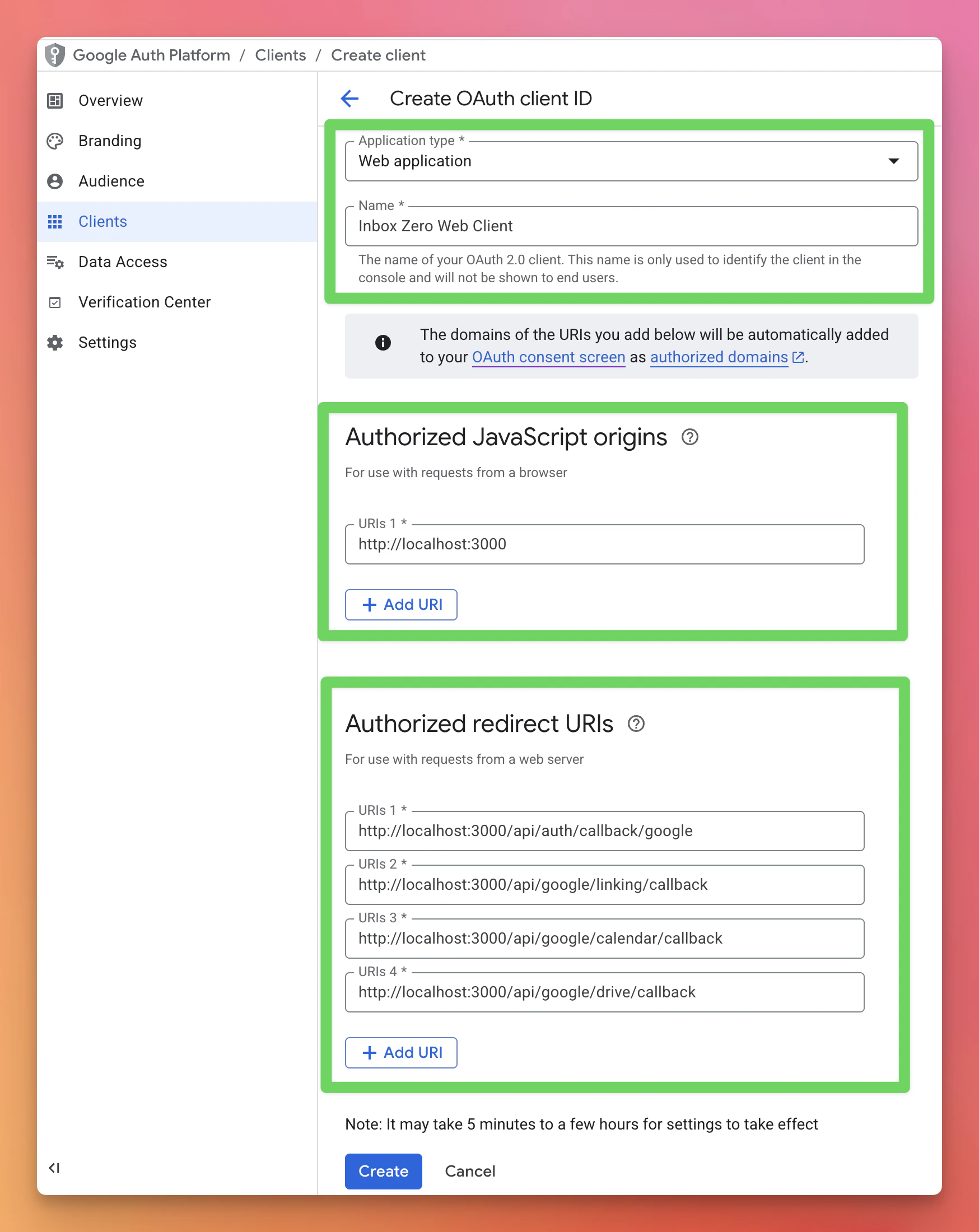
2. Application Type: `Web application`.
3. Authorized JavaScript origins: `http://localhost:3000` (replace with your domain in production)
4. Authorized redirect URIs (replace `localhost:3000` with your domain in production):
* `http://localhost:3000/api/auth/callback/google`
* `http://localhost:3000/api/google/linking/callback`
* `http://localhost:3000/api/google/calendar/callback` (optional, for calendar)
* `http://localhost:3000/api/google/drive/callback` (optional, for Drive)
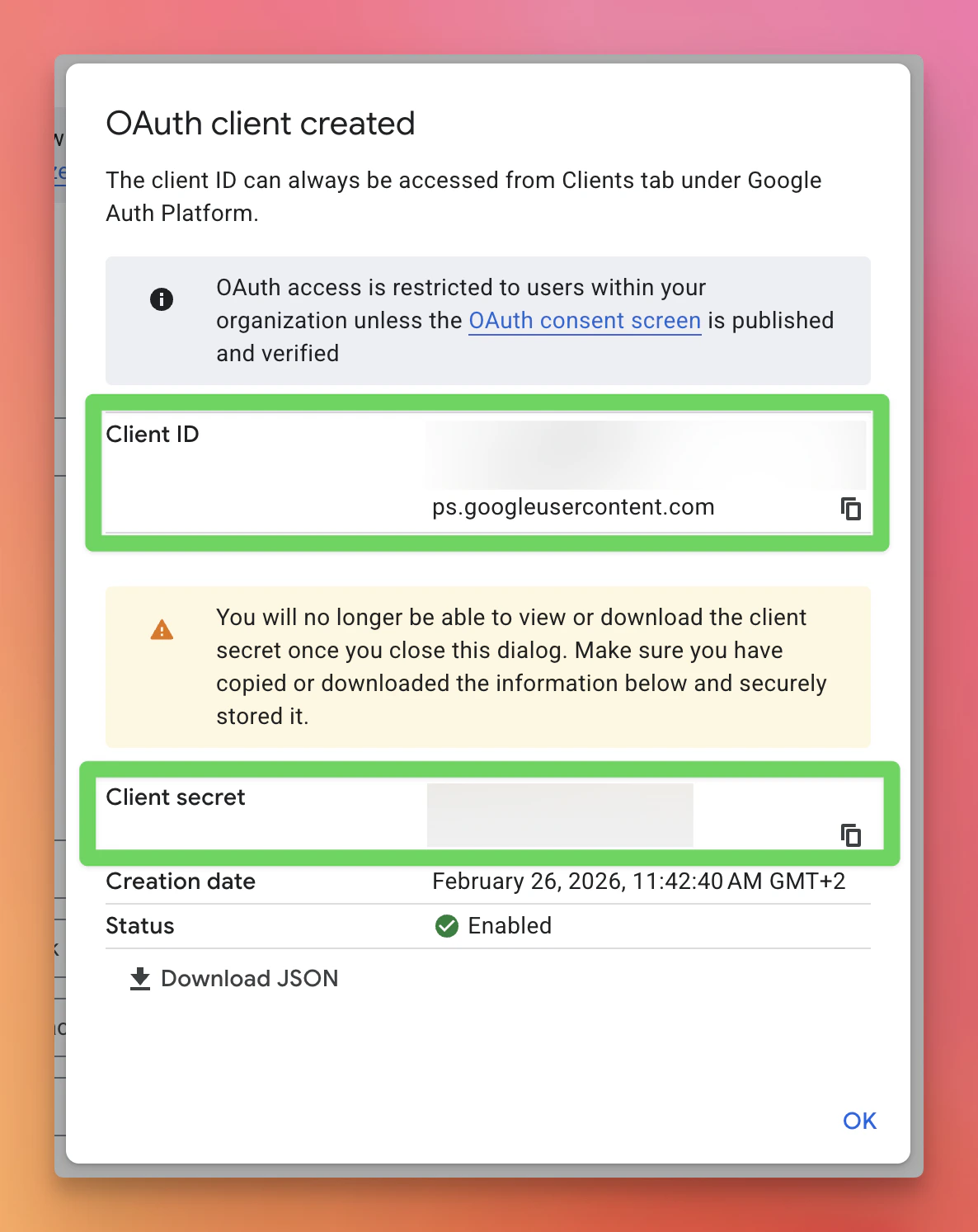
5. Click `Create` and copy the Client ID and secret.
 3. **Update `.env` file:**
* Set `GOOGLE_CLIENT_ID` and `GOOGLE_CLIENT_SECRET`.
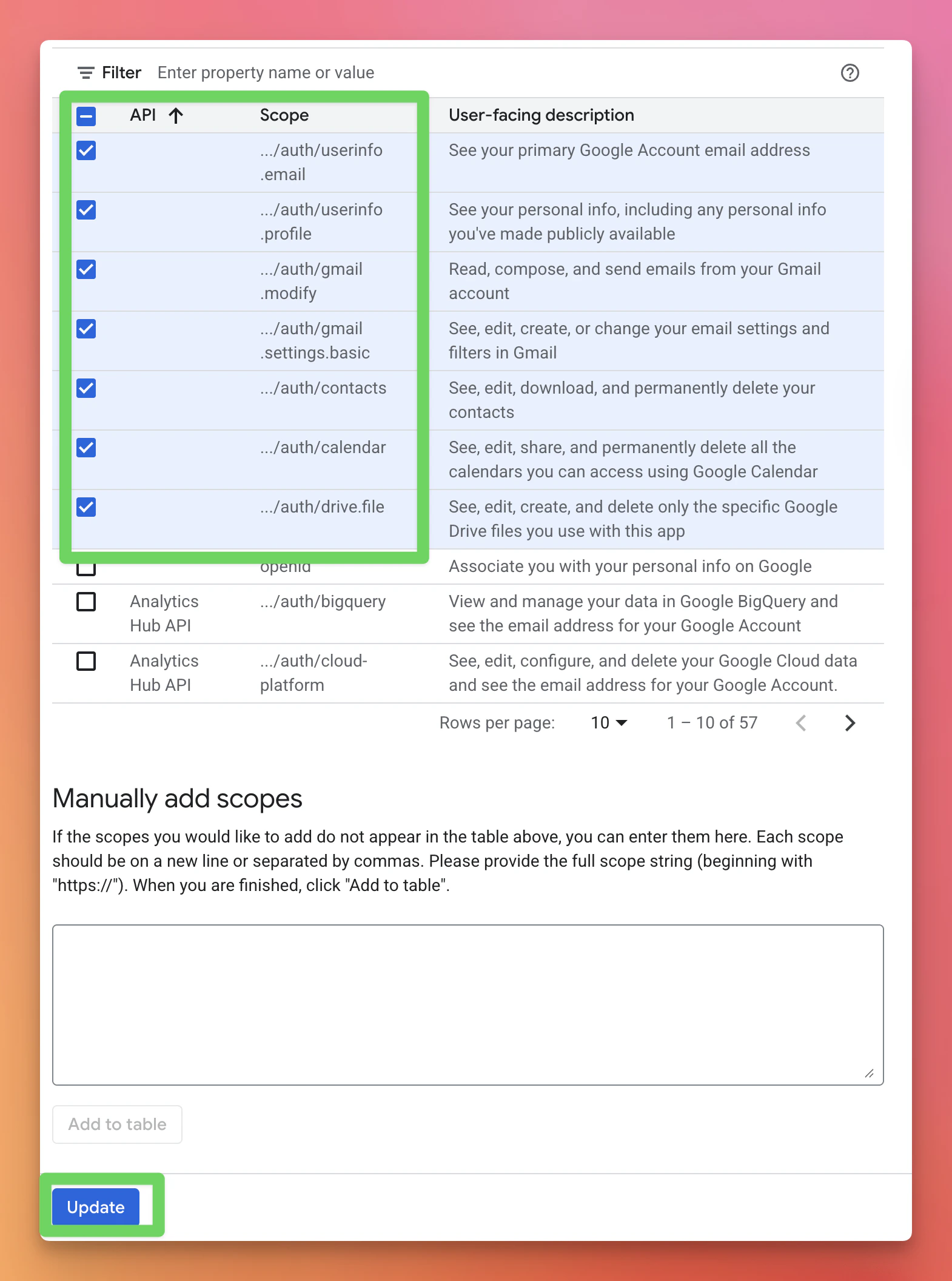
4. **Update [scopes](https://console.cloud.google.com/auth/scopes):**
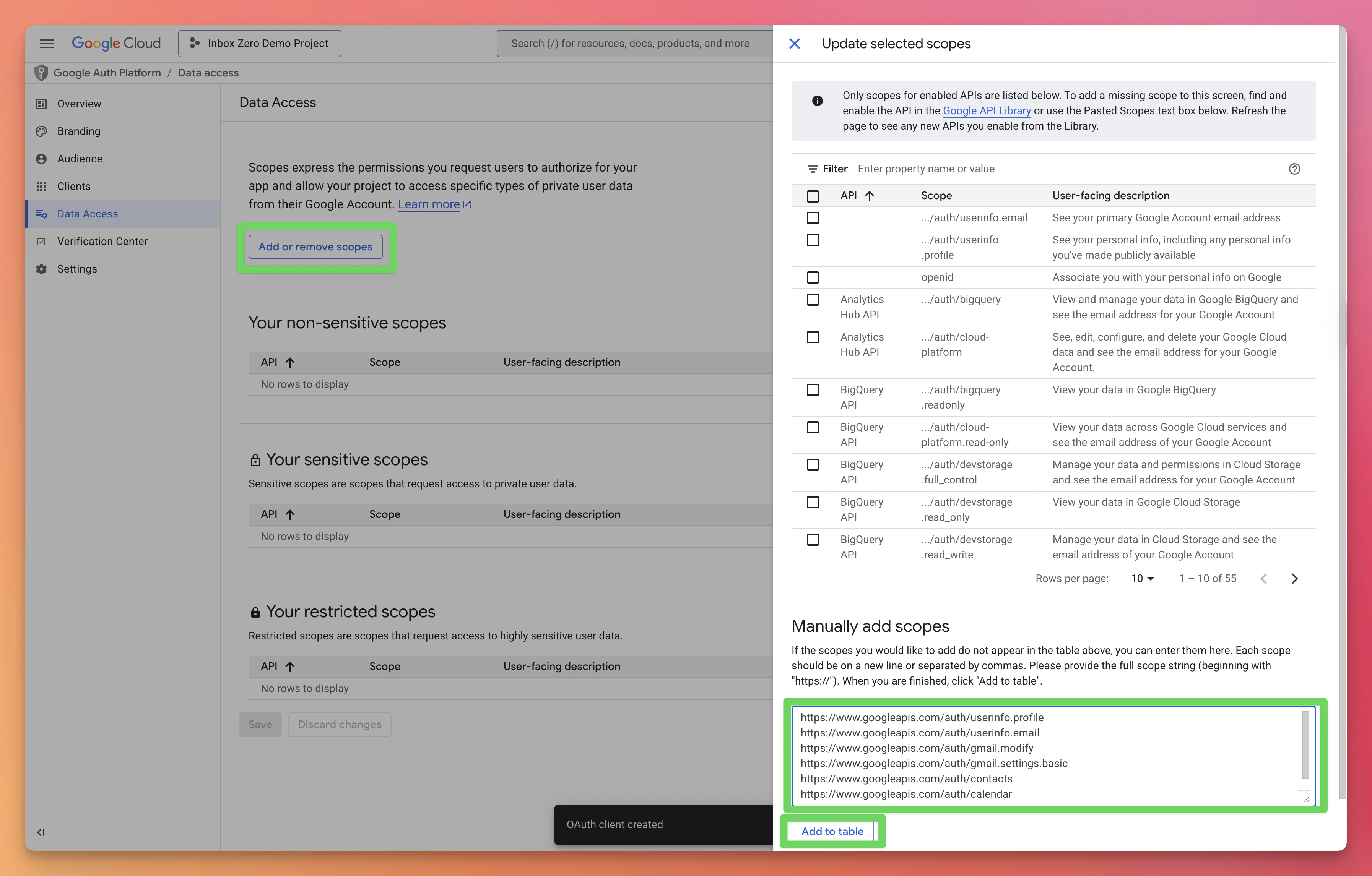
1. Go to `Data Access` in the sidebar.
2. Click `Add or remove scopes`.
3. Manually add these scopes:
```
https://www.googleapis.com/auth/userinfo.profile
https://www.googleapis.com/auth/userinfo.email
https://www.googleapis.com/auth/gmail.modify
https://www.googleapis.com/auth/gmail.settings.basic
https://www.googleapis.com/auth/contacts
https://www.googleapis.com/auth/calendar
https://www.googleapis.com/auth/drive.file
```
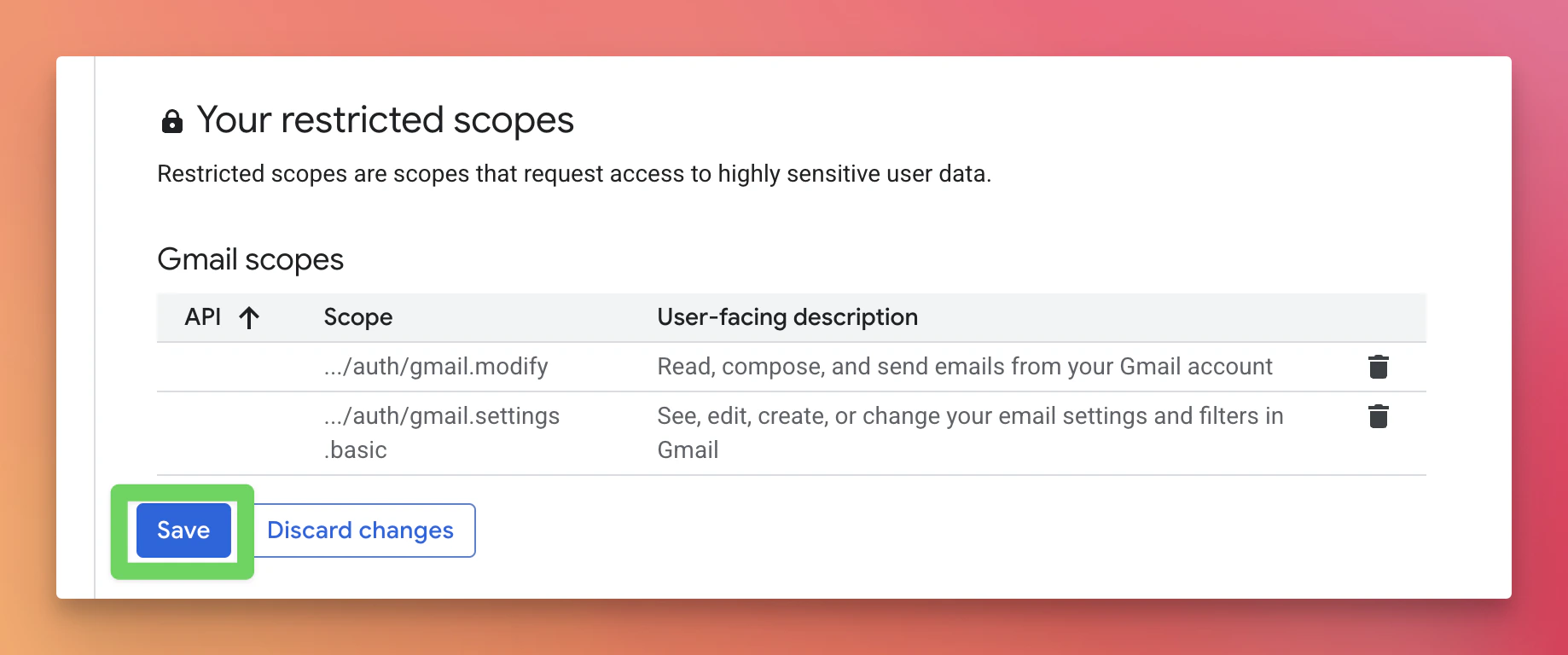
4. Click `Update`, then `Save`.
3. **Update `.env` file:**
* Set `GOOGLE_CLIENT_ID` and `GOOGLE_CLIENT_SECRET`.
4. **Update [scopes](https://console.cloud.google.com/auth/scopes):**
1. Go to `Data Access` in the sidebar.
2. Click `Add or remove scopes`.
3. Manually add these scopes:
```
https://www.googleapis.com/auth/userinfo.profile
https://www.googleapis.com/auth/userinfo.email
https://www.googleapis.com/auth/gmail.modify
https://www.googleapis.com/auth/gmail.settings.basic
https://www.googleapis.com/auth/contacts
https://www.googleapis.com/auth/calendar
https://www.googleapis.com/auth/drive.file
```
4. Click `Update`, then `Save`.
 5. **Add yourself as a test user (External only):**
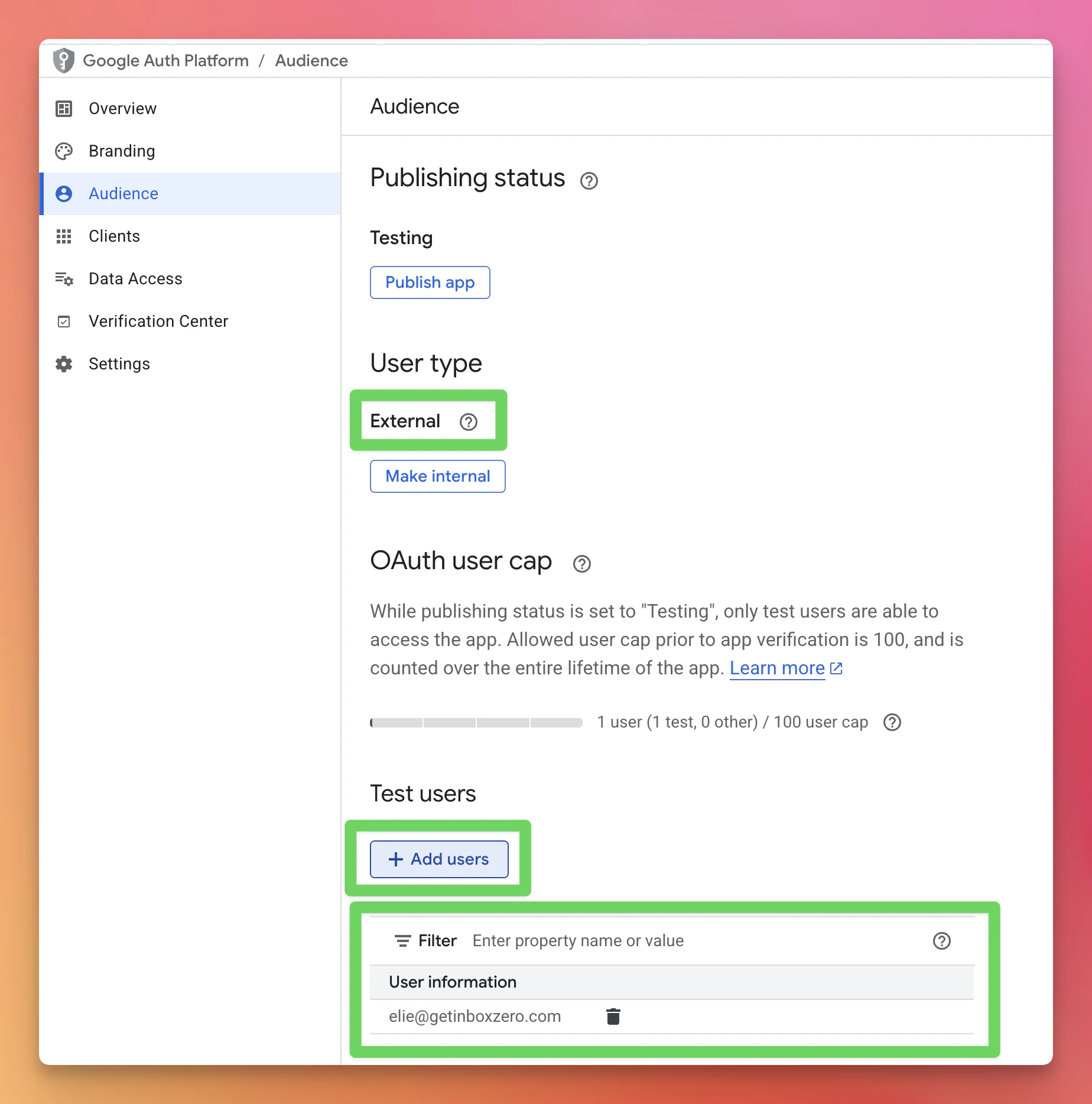
1. Go to [Audience](https://console.cloud.google.com/auth/audience).
2. In `Test users`, click `+Add users` and enter your email.
5. **Add yourself as a test user (External only):**
1. Go to [Audience](https://console.cloud.google.com/auth/audience).
2. In `Test users`, click `+Add users` and enter your email.
 Skip this step if you chose Internal — all org members can sign in automatically.
6. **Enable required APIs:**
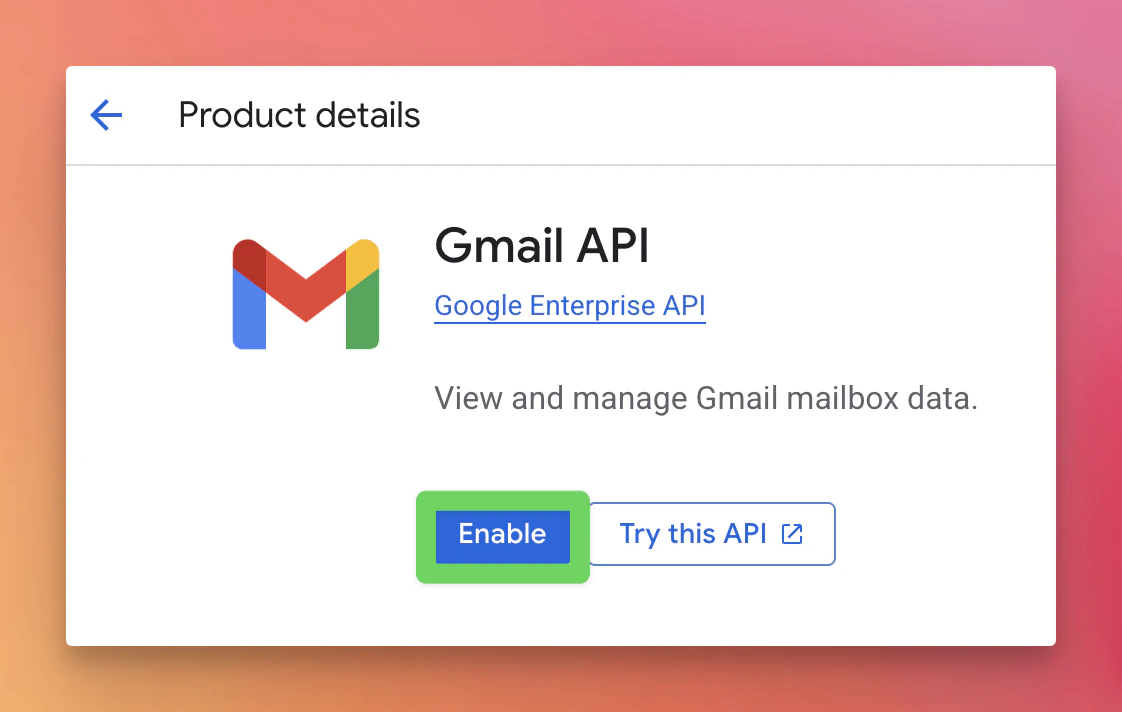
* [Gmail API](https://console.cloud.google.com/apis/library/gmail.googleapis.com) (required)
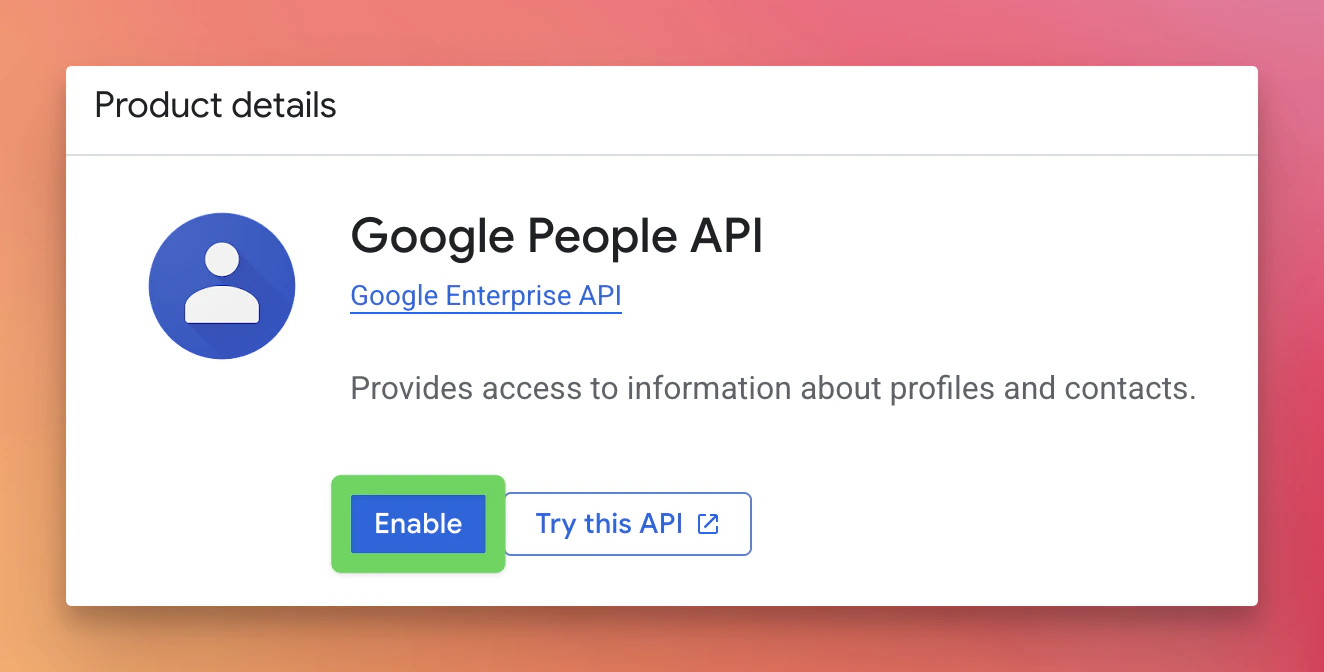
* [Google People API](https://console.cloud.google.com/marketplace/product/google/people.googleapis.com) (required)
* [Google Calendar API](https://console.cloud.google.com/marketplace/product/google/calendar-json.googleapis.com) (optional)
* [Google Drive API](https://console.cloud.google.com/marketplace/product/google/drive.googleapis.com) (optional)
Skip this step if you chose Internal — all org members can sign in automatically.
6. **Enable required APIs:**
* [Gmail API](https://console.cloud.google.com/apis/library/gmail.googleapis.com) (required)
* [Google People API](https://console.cloud.google.com/marketplace/product/google/people.googleapis.com) (required)
* [Google Calendar API](https://console.cloud.google.com/marketplace/product/google/calendar-json.googleapis.com) (optional)
* [Google Drive API](https://console.cloud.google.com/marketplace/product/google/drive.googleapis.com) (optional)
 Next step for real-time notifications: [Google PubSub](/hosting/google-pubsub)