> ## Documentation Index
> Fetch the complete documentation index at: https://docs.getinboxzero.com/llms.txt
> Use this file to discover all available pages before exploring further.
# Reply Zero
> Focus on emails that matter and never miss a follow-up
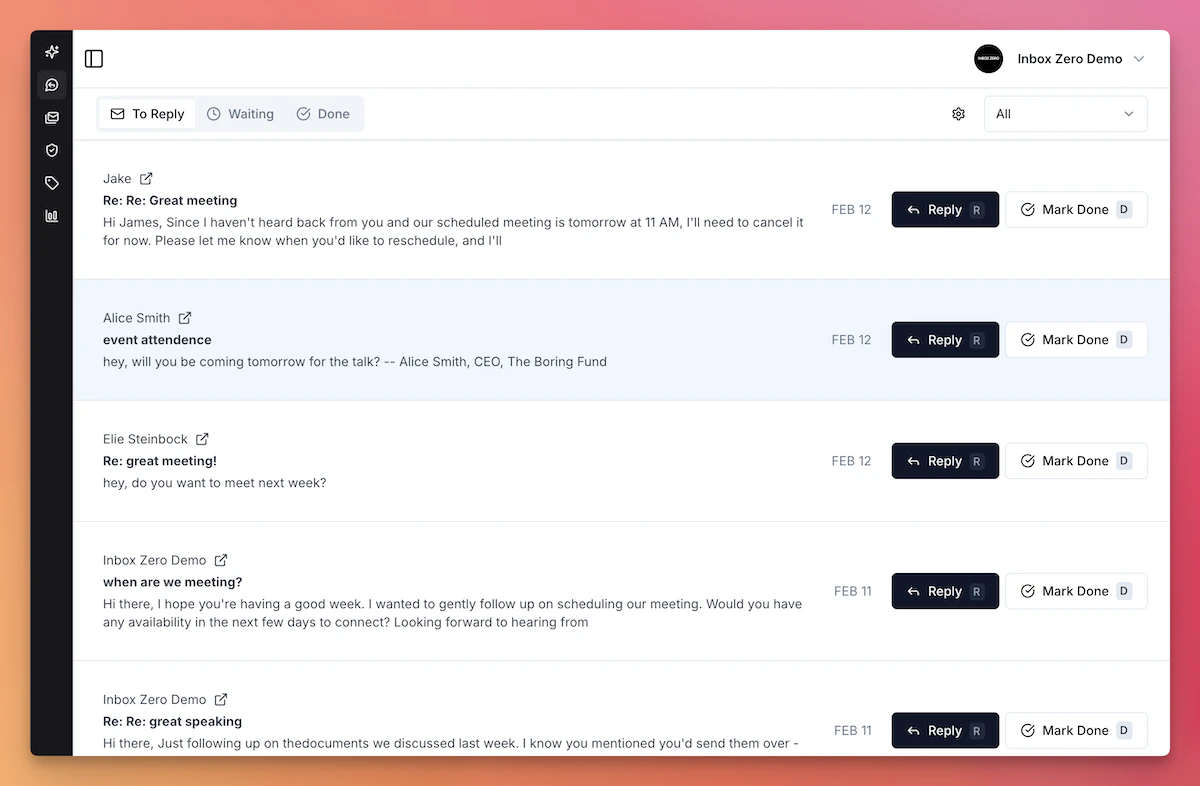
Reply Zero labels every email that needs a reply as `To Reply`, and every email where you're waiting for a reply as `Awaiting Reply`. These labels appear in your regular email client (Gmail or Outlook). Gmail users can also use the Reply Zero view in Inbox Zero to see only these emails.
 ## Getting Started
Reply Zero view is not currently available for Microsoft/Outlook users. To see emails needing replies, Microsoft/Outlook users can check the `To Reply` folder in Microsoft/Outlook.
Go to the [Reply Zero](https://www.getinboxzero.com/reply-zero) tab in the left sidebar to enable it.
## How It Works
### To Reply
Our AI analyzes incoming emails and labels the ones that need your response as `To Reply`. They appear in both your email client and the Reply Zero view.
### Awaiting Reply
When you send an email that needs a response, Reply Zero labels the thread as `Awaiting Reply` and adds it to your `Waiting` list so you can track overdue responses.
### One-click Follow-ups
Use the `Nudge` button to have AI draft a follow-up message. Filter by age to prioritize overdue conversations.
## Managing Your Lists
* **Mark as Done** — Click `Mark Done` to move a conversation to the `Done` tab
* **Filter by Age** — Filter for emails waiting more than a week to focus on overdue threads
## Getting Started
Reply Zero view is not currently available for Microsoft/Outlook users. To see emails needing replies, Microsoft/Outlook users can check the `To Reply` folder in Microsoft/Outlook.
Go to the [Reply Zero](https://www.getinboxzero.com/reply-zero) tab in the left sidebar to enable it.
## How It Works
### To Reply
Our AI analyzes incoming emails and labels the ones that need your response as `To Reply`. They appear in both your email client and the Reply Zero view.
### Awaiting Reply
When you send an email that needs a response, Reply Zero labels the thread as `Awaiting Reply` and adds it to your `Waiting` list so you can track overdue responses.
### One-click Follow-ups
Use the `Nudge` button to have AI draft a follow-up message. Filter by age to prioritize overdue conversations.
## Managing Your Lists
* **Mark as Done** — Click `Mark Done` to move a conversation to the `Done` tab
* **Filter by Age** — Filter for emails waiting more than a week to focus on overdue threads