> ## Documentation Index
> Fetch the complete documentation index at: https://docs.getinboxzero.com/llms.txt
> Use this file to discover all available pages before exploring further.
# Inbox Zero Tabs Extension
> Add custom tabs to Gmail for email organization
## Overview
Inbox Zero Tabs is a free browser extension that adds custom tabs to Gmail. It helps you organize your inbox by creating tabs for different types of emails - similar to Superhuman's split inbox feature.
The extension is 100% private - all data stays in your browser with no tracking or data collection.
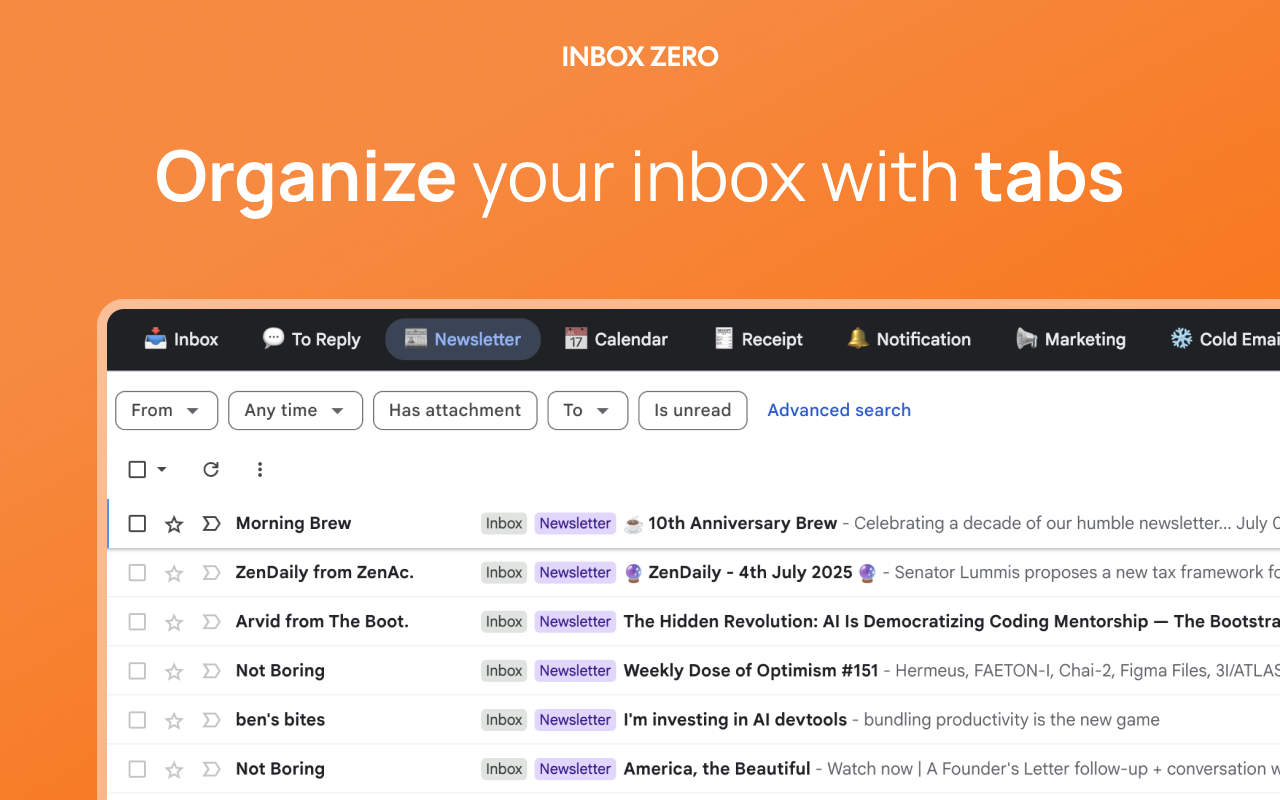 When used with [Inbox Zero's AI Assistant](/essentials/email-ai-personal-assistant), the extension becomes extra powerful. The AI can automatically categorize and label your emails, which then appear in the appropriate tabs without any manual setup.
## Installation
Install the extension for your browser:
### Chrome & Chromium Browsers
[Get Inbox Zero Tabs Extension](https://go.getinboxzero.com/extension)
Works with Chrome, Brave, Arc, Edge, Opera, and other Chromium-based browsers.
### Firefox
[Get Inbox Zero Tabs for Firefox](https://go.getinboxzero.com/firefox)
Works with Firefox and Firefox-based browsers.
After installation, refresh your Gmail tab to see the new tab system.
## Features
The extension adds custom tabs to Gmail that work with any Gmail search query. You get pre-configured tabs for common needs like "To Reply", "Newsletters", and "Receipts", or you can create your own based on any search criteria.
It supports multiple Gmail accounts with separate settings for each, automatically detecting which account you're using. The design matches Gmail's interface perfectly, supporting both dark and light themes.
### Key Difference from Gmail Labels
Unlike Gmail labels which show all emails (including archived ones), tabs focus on what's currently in your inbox. This is why most tab queries include `in:inbox` - to show only active emails, not everything you've ever received. You can also add `is:unread` to focus only on unread messages.
## Getting Started
After installing the extension and refreshing Gmail, click the extension icon to add your first tab. You can choose from pre-configured tabs or create custom ones using any Gmail search query.
### Example Tabs
Common tabs include:
* **To Reply**: `in:inbox is:sent -in:chats -label:replied`
* **Newsletters**: `in:inbox label:newsletter OR from:substack.com`
* **Receipts**: `in:inbox subject:(receipt OR invoice OR order)`
* **Team**: `in:inbox from:@yourcompany.com`
* **Important & Unread**: `in:inbox is:important is:unread`
## Configuration
To add a new tab, click the extension icon and select "Add Tab". Give it a name and define the Gmail search query you want to use. You can optionally enable "Unread Only" to filter out read emails.
Existing tabs can be edited by clicking on their names. You can modify the search query, rename tabs, or delete ones you no longer need. To reorder tabs, click the settings icon and then drag tabs to arrange them in your preferred order.
Use Gmail's search operators like `from:`, `label:`, `has:attachment`, `is:unread`, and `newer_than:` to create powerful filters. Combine them with `OR` and `AND` for complex queries.
## Privacy
The extension runs entirely in your browser. No data is collected, no account is required, and your email data never leaves your device.
## Troubleshooting
### Extension Not Showing
1. Refresh your Gmail tab after installation
2. Check that the extension is enabled in your browser's extension settings
### Tabs Not Filtering Correctly
1. Verify your search query syntax
2. Test the query in Gmail's search bar first
3. Check for typos in label names
4. Ensure labels exist in your Gmail account
## Support
Need help? Contact us at [elie@getinboxzero.com](mailto:elie@getinboxzero.com) or visit our [support page](https://getinboxzero.com).
When used with [Inbox Zero's AI Assistant](/essentials/email-ai-personal-assistant), the extension becomes extra powerful. The AI can automatically categorize and label your emails, which then appear in the appropriate tabs without any manual setup.
## Installation
Install the extension for your browser:
### Chrome & Chromium Browsers
[Get Inbox Zero Tabs Extension](https://go.getinboxzero.com/extension)
Works with Chrome, Brave, Arc, Edge, Opera, and other Chromium-based browsers.
### Firefox
[Get Inbox Zero Tabs for Firefox](https://go.getinboxzero.com/firefox)
Works with Firefox and Firefox-based browsers.
After installation, refresh your Gmail tab to see the new tab system.
## Features
The extension adds custom tabs to Gmail that work with any Gmail search query. You get pre-configured tabs for common needs like "To Reply", "Newsletters", and "Receipts", or you can create your own based on any search criteria.
It supports multiple Gmail accounts with separate settings for each, automatically detecting which account you're using. The design matches Gmail's interface perfectly, supporting both dark and light themes.
### Key Difference from Gmail Labels
Unlike Gmail labels which show all emails (including archived ones), tabs focus on what's currently in your inbox. This is why most tab queries include `in:inbox` - to show only active emails, not everything you've ever received. You can also add `is:unread` to focus only on unread messages.
## Getting Started
After installing the extension and refreshing Gmail, click the extension icon to add your first tab. You can choose from pre-configured tabs or create custom ones using any Gmail search query.
### Example Tabs
Common tabs include:
* **To Reply**: `in:inbox is:sent -in:chats -label:replied`
* **Newsletters**: `in:inbox label:newsletter OR from:substack.com`
* **Receipts**: `in:inbox subject:(receipt OR invoice OR order)`
* **Team**: `in:inbox from:@yourcompany.com`
* **Important & Unread**: `in:inbox is:important is:unread`
## Configuration
To add a new tab, click the extension icon and select "Add Tab". Give it a name and define the Gmail search query you want to use. You can optionally enable "Unread Only" to filter out read emails.
Existing tabs can be edited by clicking on their names. You can modify the search query, rename tabs, or delete ones you no longer need. To reorder tabs, click the settings icon and then drag tabs to arrange them in your preferred order.
Use Gmail's search operators like `from:`, `label:`, `has:attachment`, `is:unread`, and `newer_than:` to create powerful filters. Combine them with `OR` and `AND` for complex queries.
## Privacy
The extension runs entirely in your browser. No data is collected, no account is required, and your email data never leaves your device.
## Troubleshooting
### Extension Not Showing
1. Refresh your Gmail tab after installation
2. Check that the extension is enabled in your browser's extension settings
### Tabs Not Filtering Correctly
1. Verify your search query syntax
2. Test the query in Gmail's search bar first
3. Check for typos in label names
4. Ensure labels exist in your Gmail account
## Support
Need help? Contact us at [elie@getinboxzero.com](mailto:elie@getinboxzero.com) or visit our [support page](https://getinboxzero.com).