> ## Documentation Index
> Fetch the complete documentation index at: https://docs.getinboxzero.com/llms.txt
> Use this file to discover all available pages before exploring further.
# FAQ
> Frequently Asked Questions
## Frequently Asked Questions
Answers to common questions about Inbox Zero.
### I see an error "You have exceeded the rate limit". How do I fix this?
This error is due to the fact that email providers (Gmail and Outlook) have rate limits per account.
If you've connected your account to other email services, it's possible that they are using up your rate limit.
#### For Gmail accounts:
To check what other services have access to your Gmail account, please visit the Security page for your Google account: [https://myaccount.google.com/security](https://myaccount.google.com/security).
Then in the section "Your connections to third-party apps & services", click on the `See all connections` button.
In the `Filter by` section, select `Access to Gmail`.
#### For Microsoft/Outlook accounts:
To check what other services have access to your Outlook account, please visit the App permissions page for your Microsoft account: [https://account.microsoft.com/privacy/app-access](https://account.microsoft.com/privacy/app-access).
Review the list of apps that have access to your email and data.
If there are any services there that you no longer use, click on them, and then click on `Delete all connections you have with this app` (for Gmail) or `Remove` (for Outlook).
### How do I add more email addresses to my account?
To add more email addresses to your account, please visit the [Settings](https://www.getinboxzero.com/settings) page in the left sidebar.
Then in the `Share Premium`, add the emails you'd like to share your premium with.
Each email address you add must first sign up to Inbox Zero, and then you can add them to your account.
### How do I revoke permissions to my email account?
To revoke permissions to your email account:
#### For Gmail accounts:
* Visit the [Connections](https://myaccount.google.com/u/0/connections) page in your Google account
* Search for `Inbox Zero`, click on it, and then click `See Details`
* Click on the `Remove all access` button
#### For Microsoft/Outlook accounts:
* Visit the [App permissions](https://account.microsoft.com/privacy/app-access) page in your Microsoft account, or visit [https://account.live.com/consent/Manage](https://account.live.com/consent/Manage)
* Find `Inbox Zero` in the list and click on it
* Click `Remove` to revoke access
If you don't see `Inbox Zero` in the list, it means the account is not connected to Inbox Zero.
For Gmail, you can check your other accounts by clicking your profile picture in the top right corner and switching accounts.
### How do I organize my Gmail inbox with multiple sections?
You have two options for organizing emails by type in Gmail:
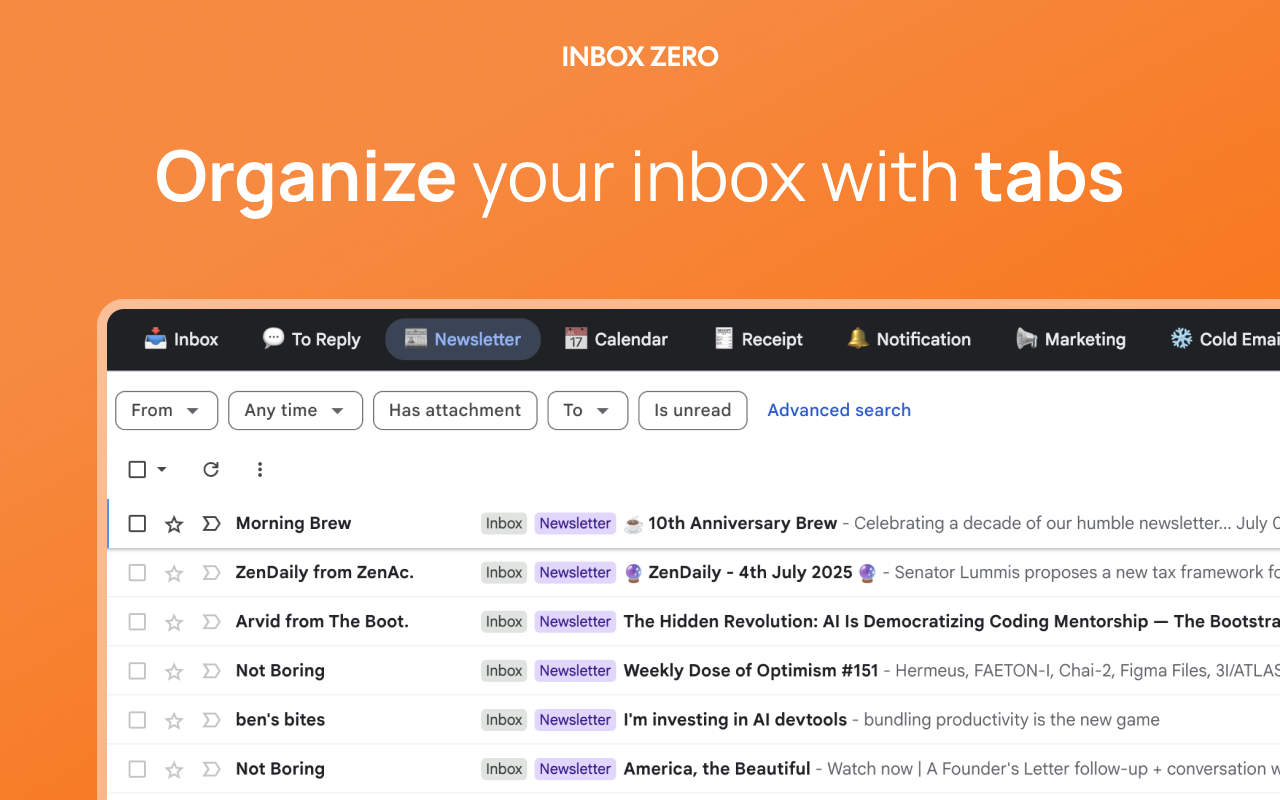
1. **Use the [Inbox Zero Tabs Extension](/essentials/inbox-zero-tabs-extension)** - Our free browser extension adds custom tabs to Gmail, letting you organize emails by type (newsletters, receipts, to reply, etc.). It works great with our AI assistant which can automatically label emails for the tabs.
 2. **Use Gmail's Multiple Inboxes feature**:
* Go to Gmail Settings → "See all settings" → "Inbox" tab
* Change "Inbox type" to "Multiple Inboxes"
* Create up to 5 sections using search queries like:
* `is:starred` for starred emails
* `label:Newsletter` for newsletters
* `is:unread` for unread messages
* `from:boss@company.com` for emails from specific senders
2. **Use Gmail's Multiple Inboxes feature**:
* Go to Gmail Settings → "See all settings" → "Inbox" tab
* Change "Inbox type" to "Multiple Inboxes"
* Create up to 5 sections using search queries like:
* `is:starred` for starred emails
* `label:Newsletter` for newsletters
* `is:unread` for unread messages
* `from:boss@company.com` for emails from specific senders
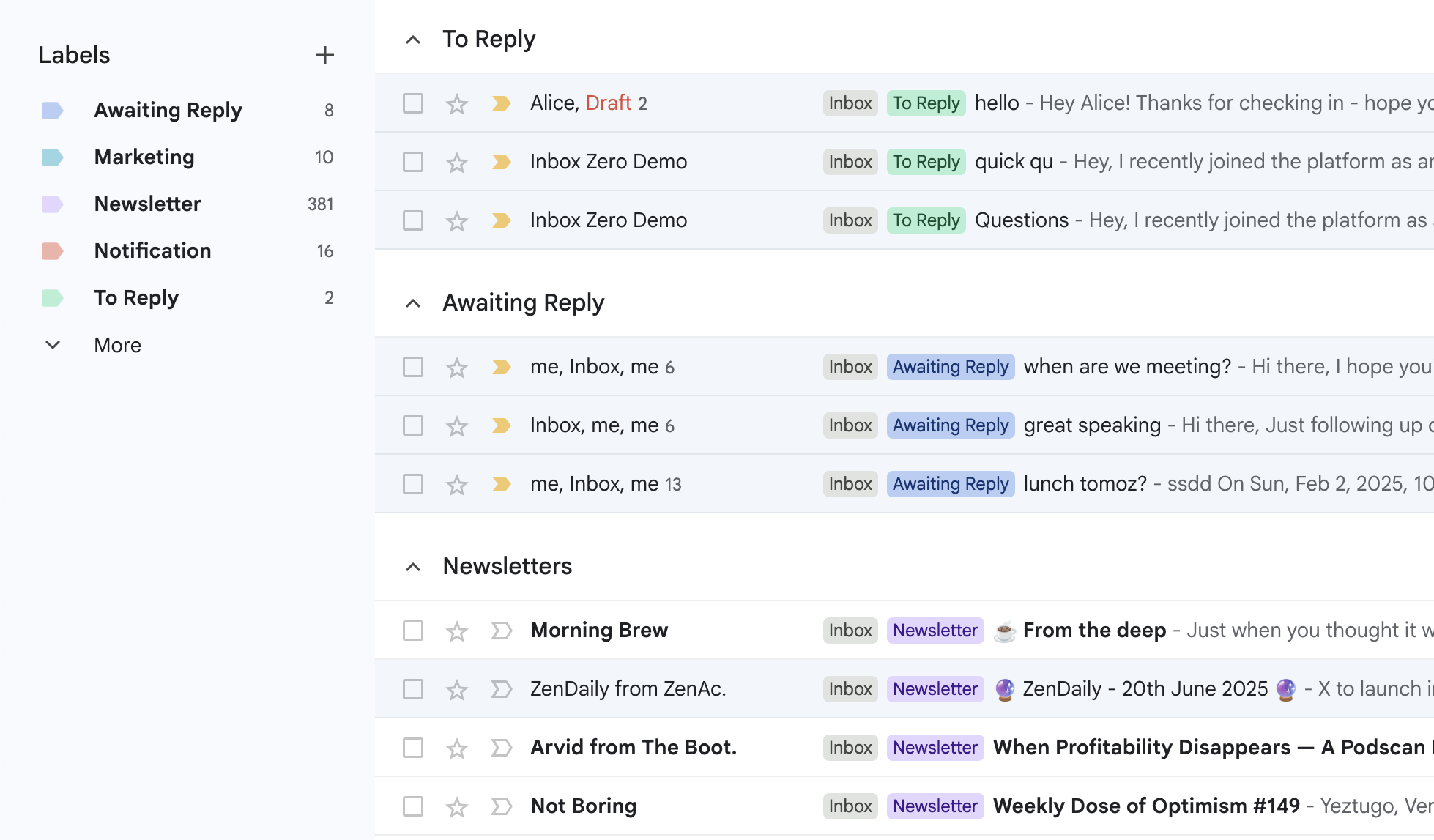 Both options help you see different types of emails at a glance instead of scrolling through one long list.
### How do I delete my account?
To delete your account, please visit the [Settings](https://www.getinboxzero.com/settings) page in the left sidebar.
Then in the `Delete Account` section, click on the `Delete Account` button.
### How do I cancel my subscription?
To cancel your subscription, please visit the [Settings](https://www.getinboxzero.com/premium) page in the left sidebar.
Then click `Manage Subscription` to cancel.
### How do I find the message ID of an email in Gmail?
The message ID is a unique identifier for an email. It can be helpful to us when you report an issue to support.
1. In Gmail web, click on the email you want to find the message ID of.
2. In the top right corner, click on the three dots icon (vertical ellipsis).
3. Click on `Show original` button.
4. The `Message ID` field is the message ID. It will look something like this: ``.
Both options help you see different types of emails at a glance instead of scrolling through one long list.
### How do I delete my account?
To delete your account, please visit the [Settings](https://www.getinboxzero.com/settings) page in the left sidebar.
Then in the `Delete Account` section, click on the `Delete Account` button.
### How do I cancel my subscription?
To cancel your subscription, please visit the [Settings](https://www.getinboxzero.com/premium) page in the left sidebar.
Then click `Manage Subscription` to cancel.
### How do I find the message ID of an email in Gmail?
The message ID is a unique identifier for an email. It can be helpful to us when you report an issue to support.
1. In Gmail web, click on the email you want to find the message ID of.
2. In the top right corner, click on the three dots icon (vertical ellipsis).
3. Click on `Show original` button.
4. The `Message ID` field is the message ID. It will look something like this: ``.