> ## Documentation Index
> Fetch the complete documentation index at: https://docs.getinboxzero.com/llms.txt
> Use this file to discover all available pages before exploring further.
# Analytics
> Understand where you're spending your time and what is filling up your inbox with our detailed analytics.
## Getting Started
To view your analytics, click on the `Analytics` tab in the left sidebar. Or visit [this link](https://www.getinboxzero.com/stats).
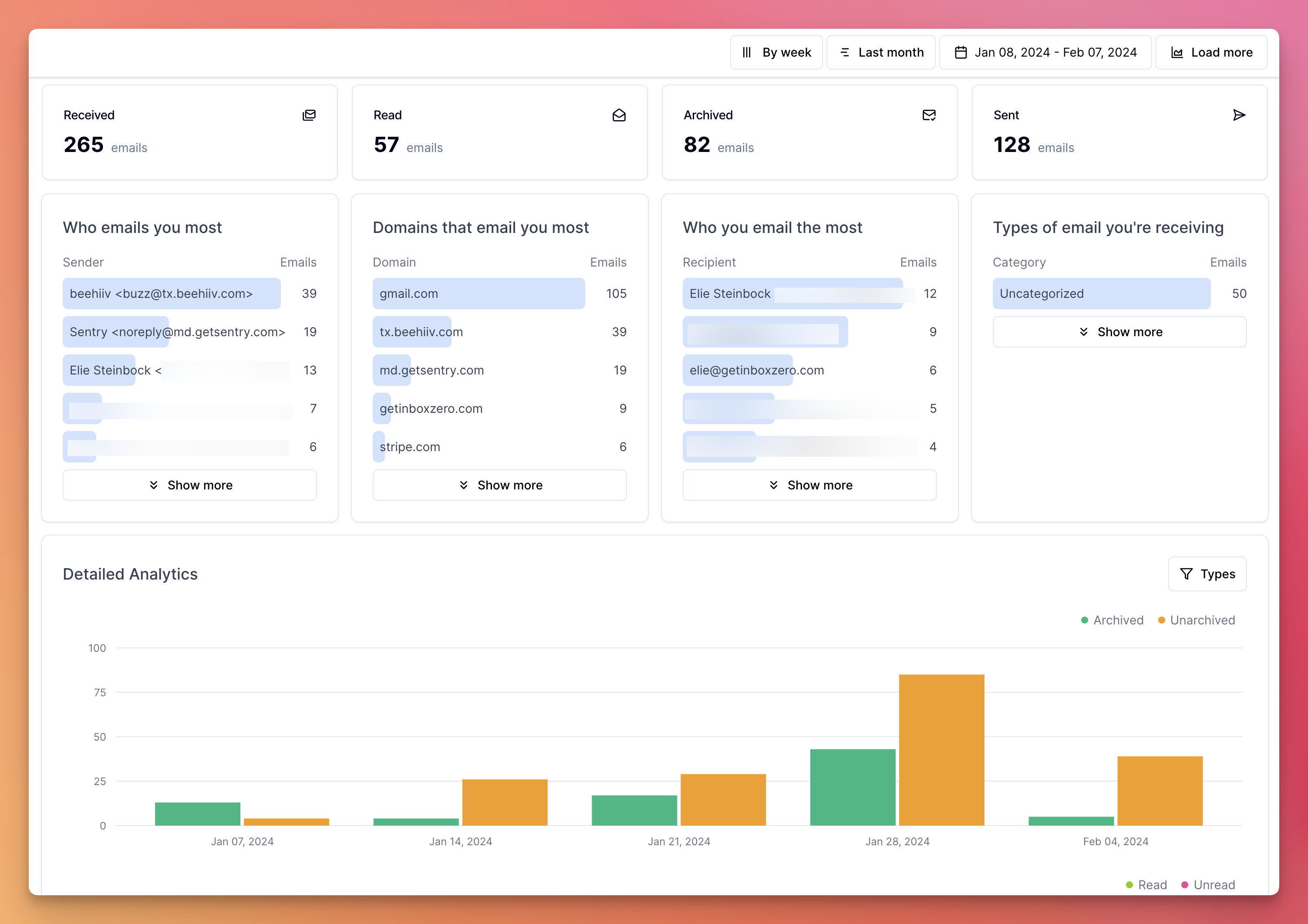 ## Features
* See how many emails you send and receive per day
* See who emails you most
* See which domains you email most
* See which categories of emails you receive most
* See who you email most
* See how many emails you're reading and archiving each day
* See what the largest emails in your inbox are to clear up space
## Loading more data
To load more of your email history, you can click on the `Load More` button at the bottom of the page. This will load more of your email history and update the analytics.
You can keep doing this to load more emails.
Adjust the date range at the top of the page to see analytics for a specific time period.
## Category Stats
To see category stats, go to the `Mail` page, select all emails, and click `Categorize`. Category stats will then appear on the Analytics page.
## Features
* See how many emails you send and receive per day
* See who emails you most
* See which domains you email most
* See which categories of emails you receive most
* See who you email most
* See how many emails you're reading and archiving each day
* See what the largest emails in your inbox are to clear up space
## Loading more data
To load more of your email history, you can click on the `Load More` button at the bottom of the page. This will load more of your email history and update the analytics.
You can keep doing this to load more emails.
Adjust the date range at the top of the page to see analytics for a specific time period.
## Category Stats
To see category stats, go to the `Mail` page, select all emails, and click `Categorize`. Category stats will then appear on the Analytics page.