> ## Documentation Index
> Fetch the complete documentation index at: https://docs.getinboxzero.com/llms.txt
> Use this file to discover all available pages before exploring further.
# AI Personal Assistant
> Set up your assistant to manage your emails for you.
The AI Personal Assistant automatically manages your inbox — labeling, archiving, and drafting replies based on rules you define. Set it up using the [AI Chat](/essentials/ai-chat) or configure rules manually below.
## Getting Started
To set up AI Personal Assistant for your email, click on the `AI Personal Assistant` tab in the left sidebar. Or visit [this link](https://www.getinboxzero.com/automation).
### Creating Rules
You can create rules in two ways:
#### Natural Language Instructions
1. Type instructions in plain English in the text area
2. Use the example instructions on the right for inspiration
3. Combine multiple instructions for comprehensive email management
4. Click `Create Rules` and the AI will convert your instructions into rules
#### Manual Rule Creation
For more precise control, create rules manually by clicking the `Manually add rule` button.
### AI Chat
You can also create and manage rules through the [AI Chat](/essentials/ai-chat) — just describe what you want in plain English.
## Rules
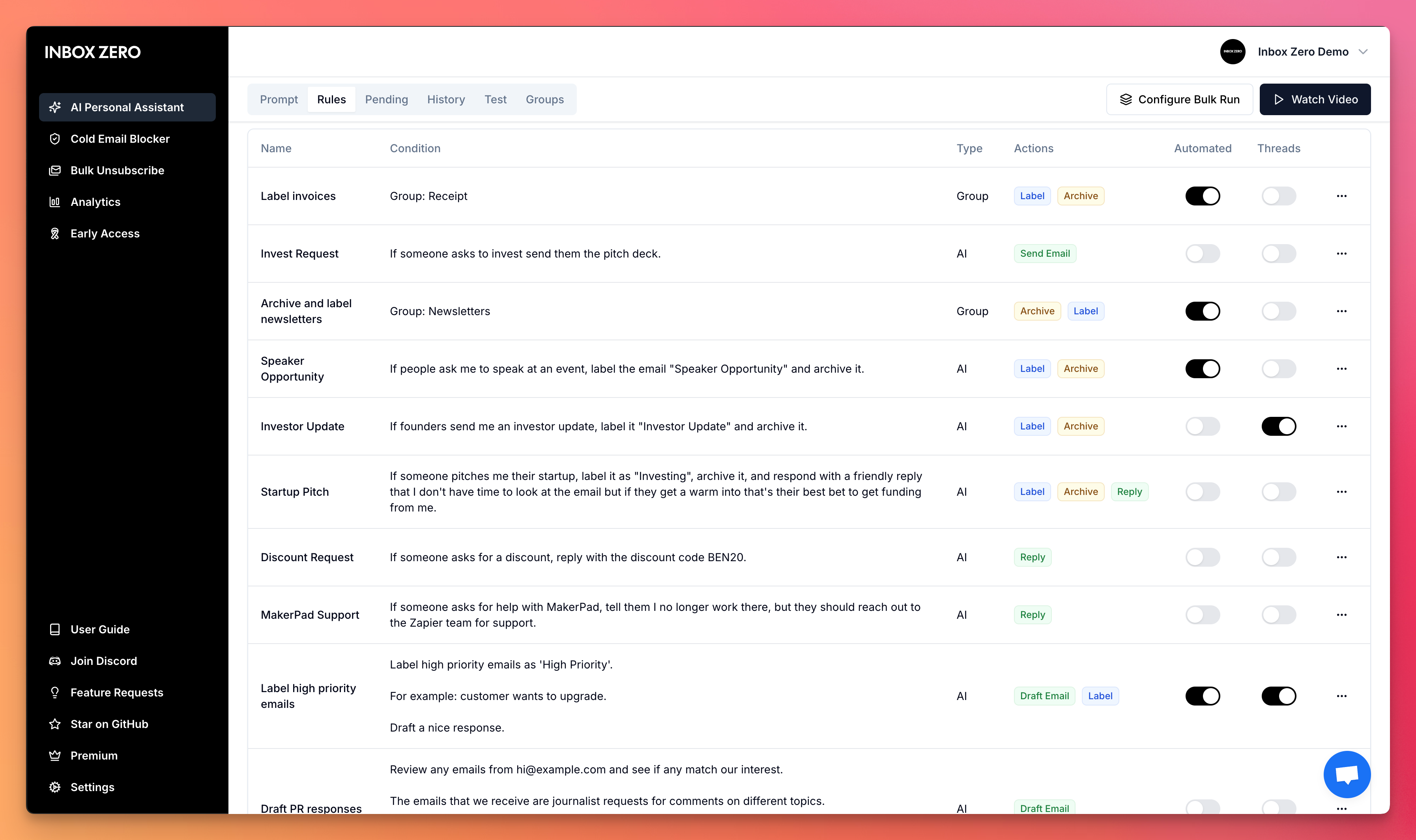
On the [Rules](https://www.getinboxzero.com/automation?tab=rules) page, you can view and edit your rules.
When you save your prompt the rules will be automatically created for you. But you can also decide to create rules manually.
### How Rules Work
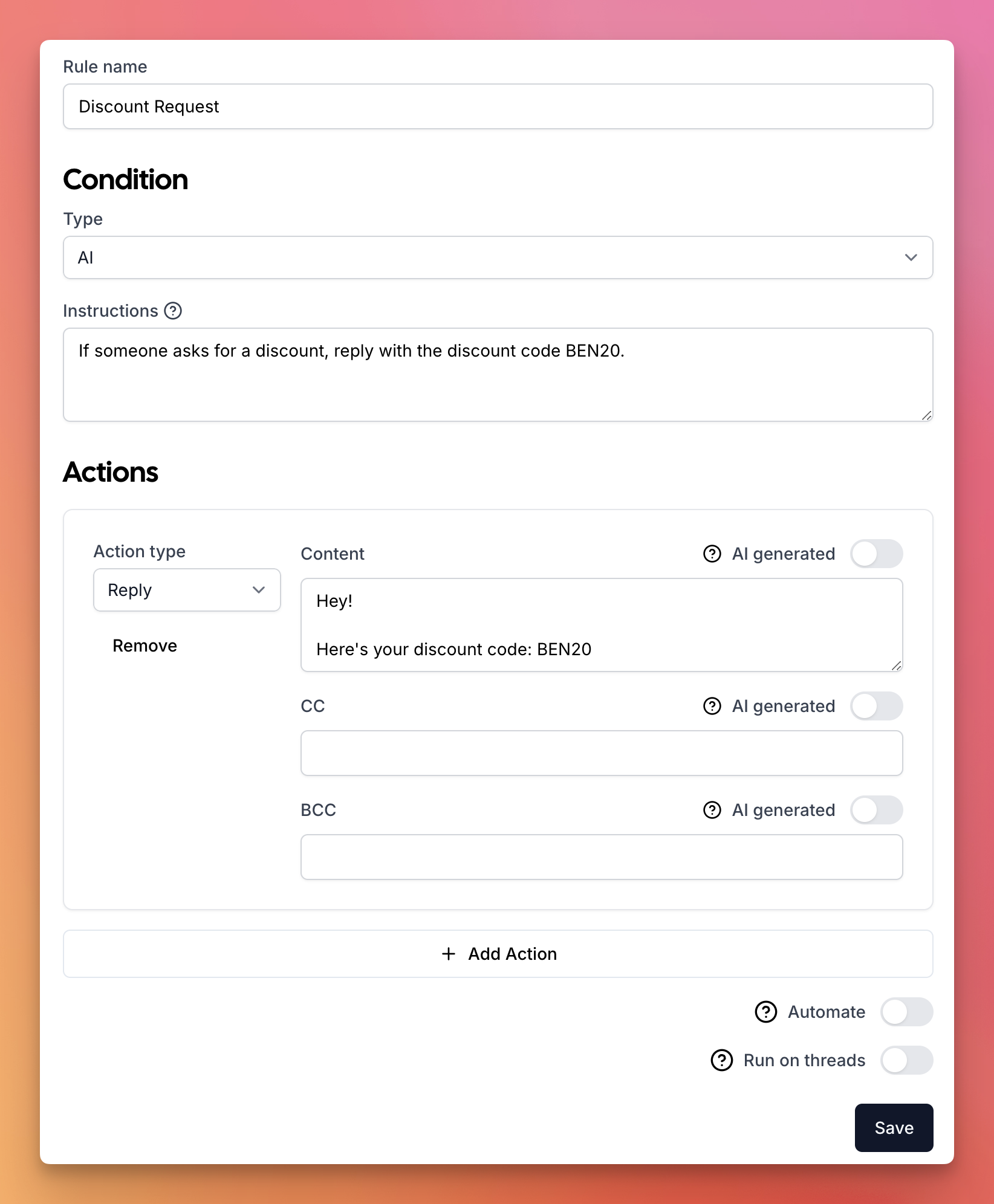
Rules are broken into two parts:
1. The condition to match against.
2. The action to take when the AI finds a match.
If the condition is met, the AI will take the action.
#### Conditions
There are two main types of conditions:
* **AI**: Write an instruction for the AI to match against the email.
* **Static**: Match against a static value: `From`, `To`, or `Subject`.
**AI Conditions**
You can write an instruction for the AI to match against the email.
For example:
`Apply this rule if this email is asking me to set up a call.`
When an email is received, the AI will use the prompt to determine if the email matches the condition.
**Static Conditions**
You can match against a static value: `From`, `To`, or `Subject`.
For example:
`From: @email.com`
This will match against any email that has `@email.com` in the `From` field.
The benefit of using static conditions is that they don't require AI processing on every email, leading to greater efficiency and reliability.
### Learned Patterns
Our AI automatically learns your behavior over time - no setup required! The system observes how you interact with emails and adapts accordingly.
**Viewing Learned Patterns**
* Click into any rule to see its learned patterns
* Usually, you don't need to modify these
* Advanced users can manually adjust patterns if needed
#### Actions
Actions are what the AI does when a condition is met. You can add multiple actions to a single rule.
Available actions:
* Archive
* Label
* Reply
* Forward
* Send Email
* Draft Email
* Mark Read
* Mark Spam
* Move to Folder
* Call Webhook
* Delayed Actions (archive or perform actions after a set time)
**AI Generated Content**
You can include AI-generated content in your actions by writing custom prompts inside double curly braces: `{{prompt}}`.
Example:
```
Hi {{name}},
{{write a response expressing interest in their proposal and ask about their timeline}}
Best regards
```
The AI will process each prompt in real-time based on the email context, replacing the content inside the curly braces with generated text.
Everything outside the `{{...}}` placeholders will remain exactly as written.
#### Apply to Threads
When "Apply to Threads" is disabled on a rule, that rule is skipped for replies and only runs on the first email in a conversation. This is useful for rules that target standalone emails like newsletters or receipts — disabling it means the AI evaluates fewer rules on threaded emails, improving speed and accuracy.
#### When Multiple Rules Can Apply
If multi-rule selection is off, the AI normally chooses one rule. A few automatic behaviors can still add another label:
* A static rule, like `From` contains `@company.com`, can label an email as `Team` while `To Reply` adds a draft if the message needs a response.
* If a thread was already marked `To Reply` or `Awaiting Reply`, replies in that thread can keep the conversation moving between those labels.
* A message like "Does Wednesday at 2pm work?" can be labeled `Calendar` and also `To Reply`, so you get a draft response. Calendar invite files and event reminders stay `Calendar` only.
### Test Rules
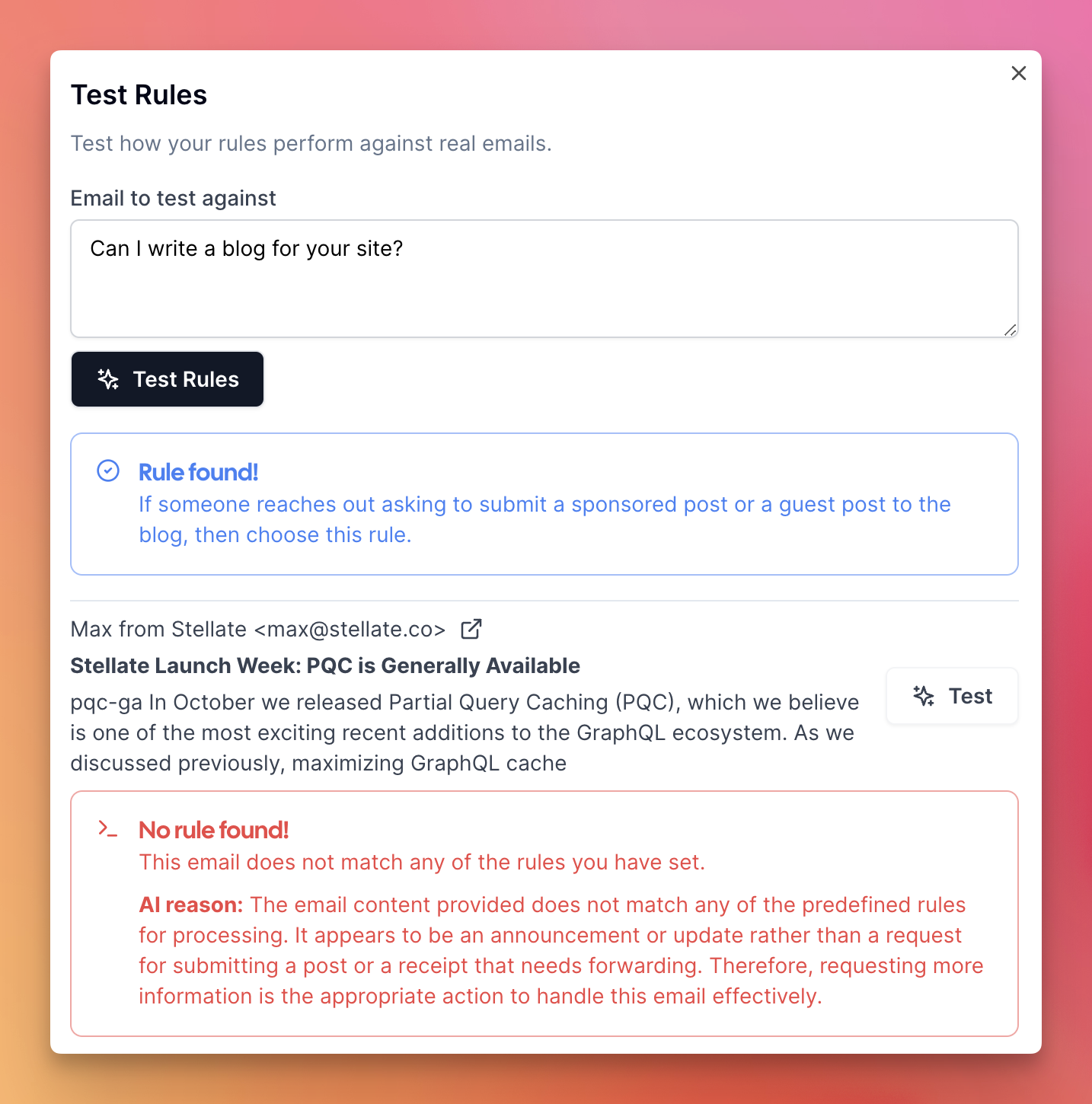
You can test your rules by going to the [Test](https://www.getinboxzero.com/automation?tab=test) tab.
This will show you a list of emails. When you click `Test`, the AI will run the rule against the email and show you which rule it matched against (if any).
You can also enter free-form text to test your rules.
To test all rules quickly, click `Test All`.
### Fix Rules
If a rule isn't behaving as expected (e.g., incorrectly marking emails as "to reply"):
1. Go to the History tab
2. Search for the problematic email
3. Click `Fix`
4. Explain why this email shouldn't match the rule
5. The AI will adjust the rule accordingly
Alternatively, use the [AI Chat](/essentials/ai-chat) to describe the issue and get help fixing it.
 ### How Rules Work
Rules are broken into two parts:
1. The condition to match against.
2. The action to take when the AI finds a match.
If the condition is met, the AI will take the action.
### How Rules Work
Rules are broken into two parts:
1. The condition to match against.
2. The action to take when the AI finds a match.
If the condition is met, the AI will take the action.
 #### Conditions
There are two main types of conditions:
* **AI**: Write an instruction for the AI to match against the email.
* **Static**: Match against a static value: `From`, `To`, or `Subject`.
**AI Conditions**
You can write an instruction for the AI to match against the email.
For example:
`Apply this rule if this email is asking me to set up a call.`
When an email is received, the AI will use the prompt to determine if the email matches the condition.
**Static Conditions**
You can match against a static value: `From`, `To`, or `Subject`.
For example:
`From: @email.com`
This will match against any email that has `@email.com` in the `From` field.
The benefit of using static conditions is that they don't require AI processing on every email, leading to greater efficiency and reliability.
### Learned Patterns
Our AI automatically learns your behavior over time - no setup required! The system observes how you interact with emails and adapts accordingly.
**Viewing Learned Patterns**
* Click into any rule to see its learned patterns
* Usually, you don't need to modify these
* Advanced users can manually adjust patterns if needed
#### Actions
Actions are what the AI does when a condition is met. You can add multiple actions to a single rule.
Available actions:
* Archive
* Label
* Reply
* Forward
* Send Email
* Draft Email
* Mark Read
* Mark Spam
* Move to Folder
* Call Webhook
* Delayed Actions (archive or perform actions after a set time)
**AI Generated Content**
You can include AI-generated content in your actions by writing custom prompts inside double curly braces: `{{prompt}}`.
Example:
```
Hi {{name}},
{{write a response expressing interest in their proposal and ask about their timeline}}
Best regards
```
The AI will process each prompt in real-time based on the email context, replacing the content inside the curly braces with generated text.
Everything outside the `{{...}}` placeholders will remain exactly as written.
#### Apply to Threads
When "Apply to Threads" is disabled on a rule, that rule is skipped for replies and only runs on the first email in a conversation. This is useful for rules that target standalone emails like newsletters or receipts — disabling it means the AI evaluates fewer rules on threaded emails, improving speed and accuracy.
#### When Multiple Rules Can Apply
If multi-rule selection is off, the AI normally chooses one rule. A few automatic behaviors can still add another label:
* A static rule, like `From` contains `@company.com`, can label an email as `Team` while `To Reply` adds a draft if the message needs a response.
* If a thread was already marked `To Reply` or `Awaiting Reply`, replies in that thread can keep the conversation moving between those labels.
* A message like "Does Wednesday at 2pm work?" can be labeled `Calendar` and also `To Reply`, so you get a draft response. Calendar invite files and event reminders stay `Calendar` only.
### Test Rules
You can test your rules by going to the [Test](https://www.getinboxzero.com/automation?tab=test) tab.
This will show you a list of emails. When you click `Test`, the AI will run the rule against the email and show you which rule it matched against (if any).
You can also enter free-form text to test your rules.
To test all rules quickly, click `Test All`.
#### Conditions
There are two main types of conditions:
* **AI**: Write an instruction for the AI to match against the email.
* **Static**: Match against a static value: `From`, `To`, or `Subject`.
**AI Conditions**
You can write an instruction for the AI to match against the email.
For example:
`Apply this rule if this email is asking me to set up a call.`
When an email is received, the AI will use the prompt to determine if the email matches the condition.
**Static Conditions**
You can match against a static value: `From`, `To`, or `Subject`.
For example:
`From: @email.com`
This will match against any email that has `@email.com` in the `From` field.
The benefit of using static conditions is that they don't require AI processing on every email, leading to greater efficiency and reliability.
### Learned Patterns
Our AI automatically learns your behavior over time - no setup required! The system observes how you interact with emails and adapts accordingly.
**Viewing Learned Patterns**
* Click into any rule to see its learned patterns
* Usually, you don't need to modify these
* Advanced users can manually adjust patterns if needed
#### Actions
Actions are what the AI does when a condition is met. You can add multiple actions to a single rule.
Available actions:
* Archive
* Label
* Reply
* Forward
* Send Email
* Draft Email
* Mark Read
* Mark Spam
* Move to Folder
* Call Webhook
* Delayed Actions (archive or perform actions after a set time)
**AI Generated Content**
You can include AI-generated content in your actions by writing custom prompts inside double curly braces: `{{prompt}}`.
Example:
```
Hi {{name}},
{{write a response expressing interest in their proposal and ask about their timeline}}
Best regards
```
The AI will process each prompt in real-time based on the email context, replacing the content inside the curly braces with generated text.
Everything outside the `{{...}}` placeholders will remain exactly as written.
#### Apply to Threads
When "Apply to Threads" is disabled on a rule, that rule is skipped for replies and only runs on the first email in a conversation. This is useful for rules that target standalone emails like newsletters or receipts — disabling it means the AI evaluates fewer rules on threaded emails, improving speed and accuracy.
#### When Multiple Rules Can Apply
If multi-rule selection is off, the AI normally chooses one rule. A few automatic behaviors can still add another label:
* A static rule, like `From` contains `@company.com`, can label an email as `Team` while `To Reply` adds a draft if the message needs a response.
* If a thread was already marked `To Reply` or `Awaiting Reply`, replies in that thread can keep the conversation moving between those labels.
* A message like "Does Wednesday at 2pm work?" can be labeled `Calendar` and also `To Reply`, so you get a draft response. Calendar invite files and event reminders stay `Calendar` only.
### Test Rules
You can test your rules by going to the [Test](https://www.getinboxzero.com/automation?tab=test) tab.
This will show you a list of emails. When you click `Test`, the AI will run the rule against the email and show you which rule it matched against (if any).
You can also enter free-form text to test your rules.
To test all rules quickly, click `Test All`.
 ### Fix Rules
If a rule isn't behaving as expected (e.g., incorrectly marking emails as "to reply"):
1. Go to the History tab
2. Search for the problematic email
3. Click `Fix`
4. Explain why this email shouldn't match the rule
5. The AI will adjust the rule accordingly
Alternatively, use the [AI Chat](/essentials/ai-chat) to describe the issue and get help fixing it.
### Fix Rules
If a rule isn't behaving as expected (e.g., incorrectly marking emails as "to reply"):
1. Go to the History tab
2. Search for the problematic email
3. Click `Fix`
4. Explain why this email shouldn't match the rule
5. The AI will adjust the rule accordingly
Alternatively, use the [AI Chat](/essentials/ai-chat) to describe the issue and get help fixing it.